
How To Remove The Drums From A Song: Easy Guide
Use stem separation software to isolate the drum track, mute it, and export the remaining instruments as a new file.
Learning how to remove the drums from a song is useful for karaoke, remixing, music practice, and sound design. The best results come from AI stem separation, but the method you choose depends on the song, audio quality, and files you have.
What It Means to Remove Drums From a Song
When you remove drums from a song, you are trying to separate the drum stem from the full mix. A finished song usually combines vocals, bass, guitars, keyboards, drums, effects, and other sounds into one stereo file.
That mix is like a smoothie. Once every part is blended, you cannot perfectly pull one ingredient out. Modern audio tools can still estimate each part and create separate stems.
The main goal is to create a version with:
• Vocals still present
• Bass still present
• Melodies and chords still present
• Drums reduced or removed
• Minimal clicks, echoes, or missing sounds
How to remove the drums from a song depends on whether you have the original project files or only a stereo MP3 or WAV file.
If you have the original multitrack session, the process is simple. Mute or delete the drum tracks, then export the mix again. If you only have a finished song, you need source separation, phase cancellation, or detailed audio editing.

The Best Ways to Remove Drums From a Song
There are four practical methods. Each one works in a different situation.
1. Use AI stem separation
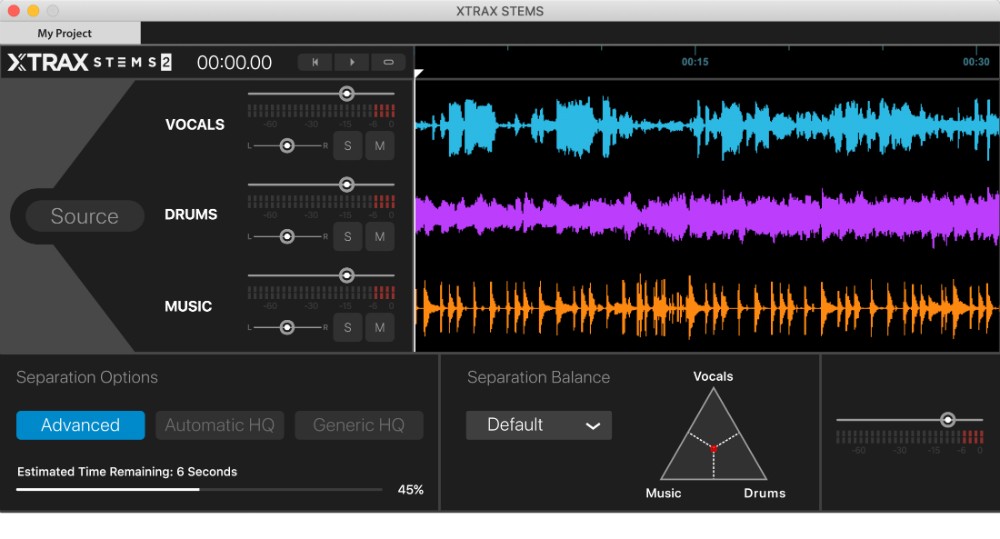
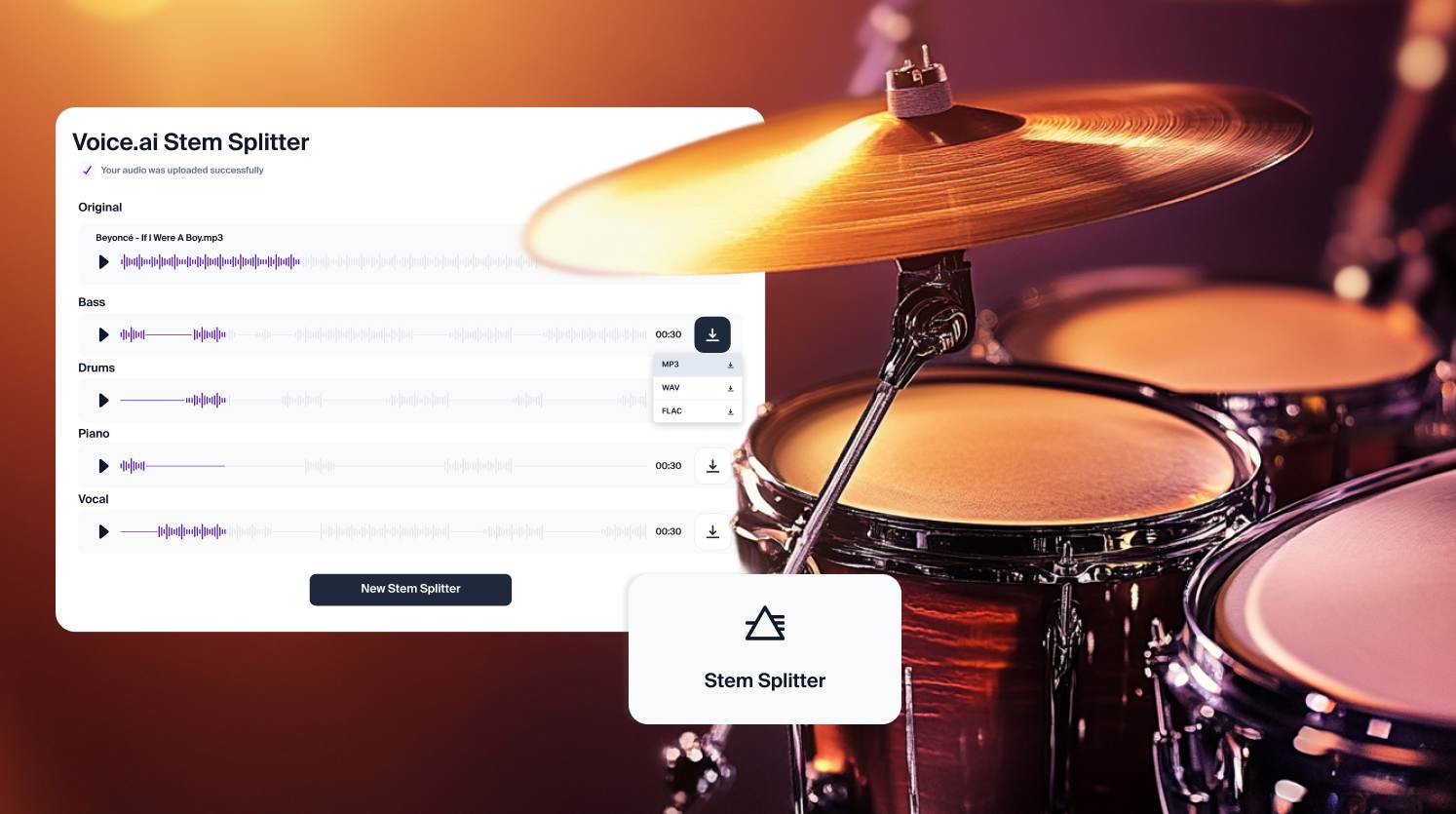
AI stem separation is usually the fastest option. Tools such as Demucs, Ultimate Vocal Remover, Moises, and iZotope RX can analyze a song and split it into stems.
Most tools offer options such as:
• Vocals
• Drums
• Bass
• Other instruments
After separation, mute the drum stem and export the remaining stems as one audio file.
This is the easiest answer for most people searching for how to remove the drums from a song. It works well for practice tracks, remixes, and quick demos.
2. Use phase cancellation
Phase cancellation works when you have two versions of the same recording. For example, you may have a full mix and an instrumental mix.
If the instrumental version contains the same drums as the full mix, you can invert the phase of one file. The matching parts may cancel out, leaving the vocals or other differences.
This method is powerful but very sensitive. The files must match in:
• Timing
• Volume
• Sample rate
• Panning
• Effects
• Mastering
A small timing change can stop the cancellation from working.
3. Use EQ and frequency editing
You can reduce drum sounds with an equalizer. This method does not truly separate the drums, but it may make them quieter.
Common drum areas include:
• Kick drum: about 40 to 100 Hz
• Snare body: about 150 to 250 Hz
• Snare crack: about 1.5 to 5 kHz
• Hi-hats: about 5 to 12 kHz
• Cymbals: about 8 to 16 kHz
These ranges overlap with bass, vocals, guitars, and keys. If you cut too much, the whole song may sound thin or dull.
4. Edit the original multitrack session
If you produced the song or received the session from the artist, this is the cleanest method.
Open the project in a digital audio workstation, such as:
• Pro Tools
• Logic Pro
• Ableton Live
• FL Studio
• Cubase
• Reaper
• Studio One
Find the drum tracks, mute them, and check the mix. You may also need to mute drum samples, percussion loops, drum effects, and reverb sends.

How to Remove the Drums From a Song With AI Software
AI separation is the most practical method for a finished song. The names of buttons vary between apps, but the basic workflow is almost the same.
Step 1: Choose a high-quality audio file
Use a WAV or FLAC file when possible. These formats preserve more detail than a low-bitrate MP3.
A clean source gives the separation tool more information. Avoid using an audio file recorded from a phone speaker, social media video, or noisy room.
Step 2: Import the song
Open your chosen stem separation tool. Import the full song and select a four-stem or five-stem model if available.
A four-stem model usually creates:
• Vocals
• Drums
• Bass
• Other
A five-stem model may separate piano or guitar as well.
Step 3: Run the separation
Start the process and wait for the software to analyze the track. Longer songs may take more time, especially if the tool works locally on your computer.
The first result is not always the best result. Some programs offer different models or separation settings. Test two or three options if the first export contains strong drum artifacts.
Step 4: Mute the drum stem
Listen to the separated stems together. Mute the drum stem and check what remains.
Pay close attention to:
• Vocal clarity
• Bass distortion
• Cymbal residue
• Snare echoes
• Reverb tails
• Warbling sounds
• Missing guitar or keyboard notes
If the result sounds acceptable, export the remaining stems as a stereo WAV file.
Step 5: Clean the remaining audio
You can improve the result with light editing. Use fades to remove clicks at the beginning and end. Apply gentle EQ if the track sounds harsh or hollow.
Do not overprocess the file. Heavy noise reduction, aggressive compression, or extreme EQ can make separation artifacts more obvious.
This workflow explains how to remove the drums from a song without needing advanced production skills.
.png)
How to Remove the Drums From a Song in Audacity
Audacity is free and useful for basic editing. It does not always separate stems by itself, but you can use it to edit files created by a stem separation tool.
Basic Audacity workflow
- Open Audacity.
- Import the separated vocal, bass, and other stems.
- Align the stems at the same starting point.
- Select all tracks.
- Choose Tracks, then Mix, then Mix and Render.
- Listen for timing problems or missing sections.
- Export the result as WAV or another suitable format.
You can also use Audacity for simple EQ cuts. Select the audio, open the equalizer, and reduce drum-heavy areas with small moves.
Avoid removing wide frequency ranges at once. A cut of 2 to 4 decibels is a safer starting point than a deep cut of 12 decibels.
A common mistake I have seen is exporting each stem with a different start time. Even a tiny offset can create flanging, phase problems, or a blurry stereo image when the tracks are combined.
How to Remove the Drums From a Song in a DAW
A DAW gives you more control than a simple online editor. This is useful when you want to preserve the vocal and instrumental balance.
With separated stems
Import the stems into separate tracks. Keep them aligned to the same bar and beat. Then mute the drum track.
You can adjust the remaining stems individually. For example:
• Lower the bass if the kick left a low-end thump
• Reduce harsh high frequencies if cymbals remain
• Add gentle compression to stabilize vocals
• Use automation to lower short drum artifacts
• Add a small fade around damaged sections
With an original session
Open the original project and locate every drum-related track. Do not stop at the main kick and snare tracks.
Check for:
• Drum bus channels
• Percussion loops
• Electronic drum layers
• Reverb and delay sends
• Sidechain-trigger tracks
• Parallel compression channels
• Drum samples hidden in instrument tracks
Solo the remaining music and listen from start to finish. Some producers place percussion in unusual channels, so track names may not tell the whole story.