
How To Remove Drum Tracks From Songs: Easy AI Guide
You can remove drum tracks from songs with AI stem separation, EQ, phase tools, or careful audio editing.
Learning how to remove drum tracks from songs is useful for karaoke, remixes, practice sessions, sampling, and music study. The best method depends on the song file, the tools you have, and how clean you need the result to be. This guide explains practical ways to isolate and remove drums, what results to expect, and how to avoid common audio problems.

What Does Removing Drum Tracks From a Song Mean?
Removing drum tracks means reducing or separating drum sounds from a full song. A typical song contains several layers, such as vocals, bass, guitars, keyboards, effects, and drums. These layers are often mixed into one stereo file, so removing only the drums can be difficult.
If you have the original multitrack session, the process is simple. You can mute the drum channels and export the remaining music. However, most people only have an MP3, WAV, or streaming file. In that case, you need stem separation or audio filtering.
A stem is an isolated part of a song. Common stems include:
• Vocals
• Drums
• Bass
• Other instruments
• Piano or keyboards
• Guitars
Modern source-separation tools use machine learning to estimate which sounds belong to each stem. They do not truly recover the original studio tracks. Instead, they create a close approximation from the mixed audio.
That difference matters. Removing drums from a song can work very well, but it may leave faint cymbal sounds, vocal artifacts, or small gaps in other instruments.
The Best Way to Remove Drum Tracks From Songs
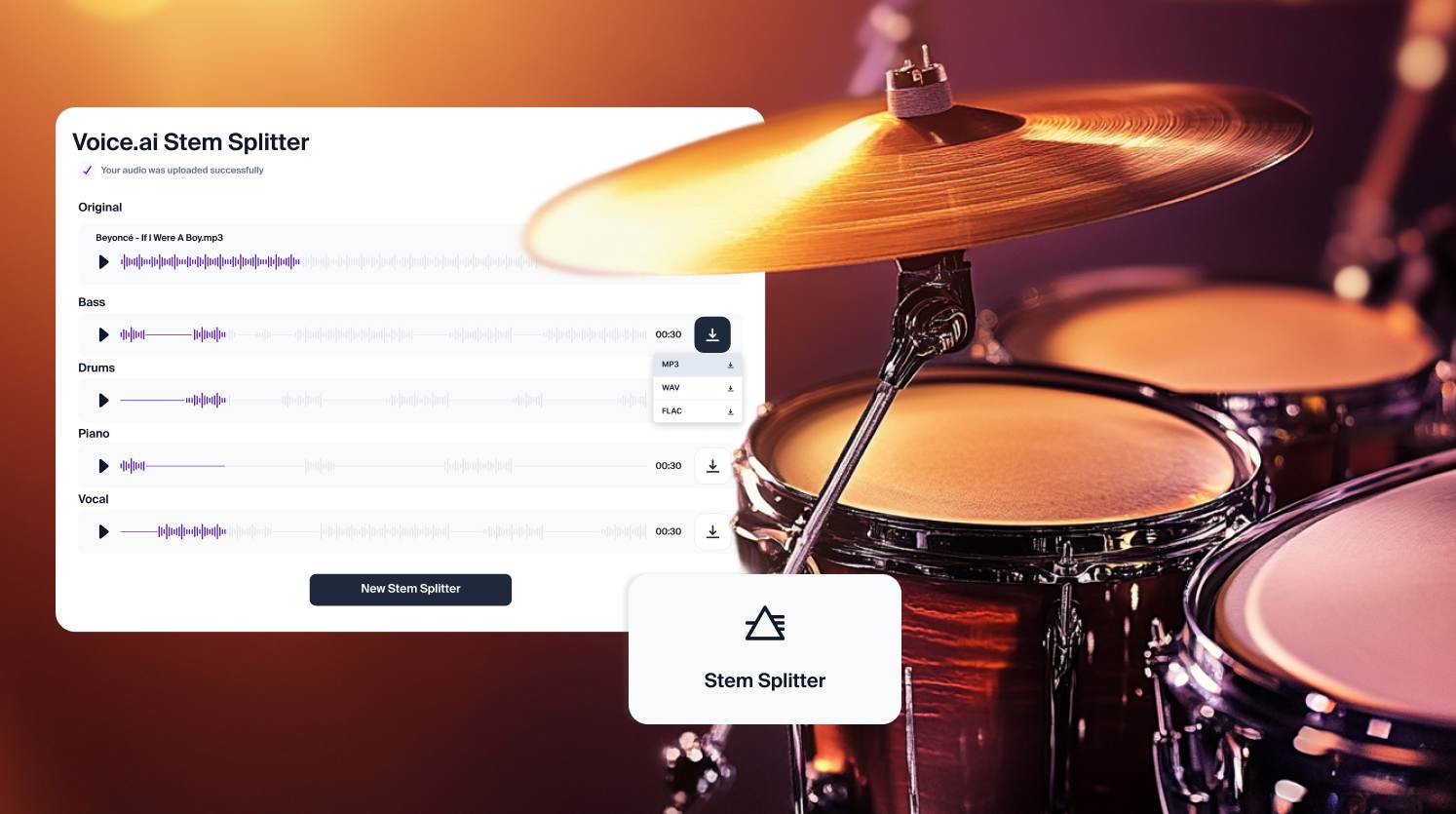
For most users, AI stem separation is the fastest and most reliable option. It can analyze a full song and create separate audio files for vocals, drums, bass, and other instruments.
The basic process looks like this:
- Choose a high-quality song file.
- Upload it to a stem-separation tool or open it in audio software.
- Select the drum separation option.
- Export the drum stem and the remaining stems.
- Mute or delete the drum stem.
- Mix and export the new version.
The exact buttons vary by program, but the concept stays the same. The tool first studies the song, then estimates which sounds belong to the drum layer.
For the cleanest result, use a WAV or AIFF file when possible. MP3 files use lossy compression, which can create extra ringing and blur. A high-quality MP3 can still work, but a compressed file usually gives the separation tool less detail to analyze.
Why AI stem separation works well
Drums have clear patterns that help software identify them. Kick drums often sit in the low range, while snares and cymbals create sharp sounds in the mid and high ranges. AI models also learn common music arrangements from large collections of songs.
Still, AI is not magic. A snare may overlap with a vocal consonant. A kick may share low frequencies with the bass guitar. When sounds overlap, the software must make an educated guess.
Popular tool types
You can remove drum tracks from songs with several types of tools:
• Online stem separators for fast, simple results
• Digital audio workstations for detailed editing
• Desktop source-separation programs for more control
• Mobile music apps for quick practice files
• Vocal remover tools that also offer drum separation
Check the tool’s export rules before uploading copyrighted music. For private practice, the process is usually straightforward, but public use, distribution, and commercial releases may require permission from the copyright owner.

How to Remove Drum Tracks From Songs With AI
AI tools are often the best starting point for beginners. They require little technical knowledge and can produce usable results within minutes.
Follow these steps:
1. Prepare the audio file
Use a legally obtained song file in WAV, FLAC, AIFF, or a high-bitrate MP3 format. Avoid files recorded from speakers or downloaded from low-quality sources. Background noise makes source separation harder.
Rename the file with a simple name. Avoid unusual symbols if the software has upload problems.
2. Upload the song
Open your chosen stem-separation tool and upload the track. Many services let you choose between two-stem separation and four-stem separation.
Choose four or five stems if available. A four-stem split usually includes vocals, drums, bass, and other instruments. This gives you more control than a simple vocal and instrumental split.
3. Select the drum stem
Wait for the tool to analyze the song. When the process ends, listen to the drum stem alone. You should hear the kick, snare, toms, hi-hats, cymbals, and percussion.
Some tools may place handclaps, shakers, tambourines, or electronic effects in the drum stem. This is normal because these sounds are rhythmic and often share similar frequencies.
4. Remove or mute the drums
If the tool provides a “no drums” export, use that option. If it gives you separate stems, place them in a digital audio workstation and mute the drum file.
Keep the original stems in the project. You may need to adjust the mix if the remaining instruments sound thin or unbalanced.
5. Export the result
Export the drum-free song as WAV for editing or FLAC for high-quality storage. Use MP3 only when you need a small file for casual listening or mobile use.
Listen to the full song with headphones and speakers. Headphones reveal small artifacts, while speakers show whether the low end still feels natural.
How to Remove Drum Tracks From Songs in a DAW
A digital audio workstation, or DAW, gives you more control than a basic online tool. Popular DAWs include Audacity, GarageBand, REAPER, Ableton Live, Logic Pro, Pro Tools, and FL Studio.
The workflow is similar in most programs:
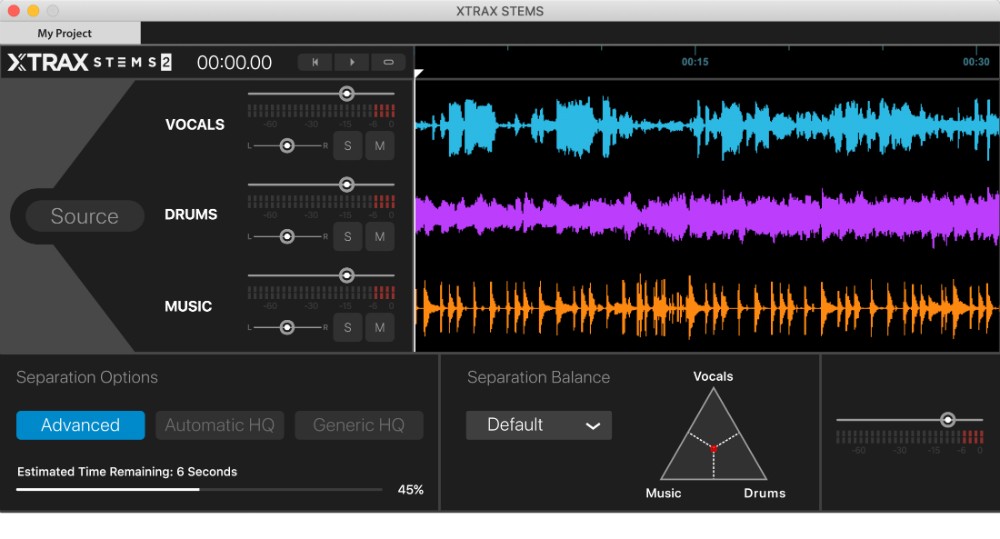
- Import the original song or separated stems.
- Create a new audio track.
- Add the drum stem if your tool created one.
- Mute the drum stem.
- Adjust the volume of the bass and other instruments.
- Add gentle processing if needed.
- Export the final mix.
If you only have one stereo file, you can try filtering methods. These methods are less precise but may help with simple songs.
Use EQ carefully
A kick drum often contains energy between 40 and 100 Hz. A snare often has strong content between 150 and 250 Hz, with attack around 2 to 5 kHz. Cymbals often reach from 6 kHz upward.
You can reduce these ranges with equalization, but other instruments also use them. Cutting too much low end can damage the bass guitar. Cutting high frequencies can make vocals and guitars sound dull.
EQ works best when you only need to reduce drums, not erase them completely. It can also help clean up small drum remnants after AI separation.
Try center-channel reduction
Some older mixes place vocals, bass, kick, and snare near the center of the stereo image. A center-removal effect can reduce sounds that appear equally in the left and right channels.
This method has serious limits. It may also remove vocals, bass, guitars, and other center-panned instruments. Stereo effects can remain, and the song may sound hollow.
Use center-channel reduction only when the mix supports it. Always keep an untouched copy of the original file.
Use spectral editing
Spectral editing shows audio as a visual map of time and frequency. You can select unwanted drum hits and reduce their volume.
This approach works well for:
• A few loud snare hits
• Isolated kick sounds
• Cymbal crashes between vocal lines
• Small percussion noises
• Short drum fills
Spectral editing takes time. It is not the best choice for a full song with busy drums, but it can improve an AI-generated result.
How to Remove Drum Tracks From Songs Without Ruining the Mix
A drum-free song can sound strange because drums provide more than rhythm. They also add energy, movement, and low-frequency weight. When you remove them, the bass may feel too loud and the remaining instruments may seem exposed.
Use these mixing steps to make the result more natural:
• Lower the bass slightly if the low end feels heavy.
• Add a gentle high-pass filter to remove unwanted rumble.
• Reduce harsh high frequencies left by cymbals.
• Use light compression to control sudden volume changes.
• Add a small amount of room sound if the track feels empty.
• Compare the result with the original at the same volume.
Do not add heavy processing too soon. First, listen to the separated version without effects. This helps you understand what the source-separation tool changed.
One practical lesson from hands-on audio editing is that loudness can trick your ears. A louder file may sound better even when it contains more distortion. Match the volume of the original and edited versions before judging quality.
Another common mistake is exporting again and again as MP3. Each lossy export can add more damage. Keep your working file in WAV or another lossless format until the final step.

How to Remove Drum Tracks From Songs With Free Tools
You do not need expensive studio software to begin. Free tools can handle basic stem separation and editing.
A free workflow may include:
- Use a free online stem separator.
- Download the drum and non-drum stems.
- Open the files in Audacity or another free DAW.
- Mute the drum stem.
- Balance the remaining tracks.
- Export the result as WAV.
Free tools can be useful for practice, music education, and quick demos. They may have limits on file length, export quality, processing speed, or daily use.
Some open-source programs also allow local processing. This can offer better privacy because you do not need to upload the song to a website. However, local tools may require installation, extra storage, and more technical setup.
Before choosing a tool, check:
• Supported file types
• Maximum upload length
• Export quality
• Privacy terms
• Watermark rules
• Commercial-use limits
• Whether the tool separates drums directly