How To Record An Electronic Drum Kit: Easy Guide
Record an electronic drum kit by routing its audio or MIDI output into an audio interface and recording it in a DAW.
Learning how to record an electronic drum kit is easier when you understand the difference between audio and MIDI. I have used both methods in home studios, and the best choice depends on your drum module, software, sound quality goals, and editing needs. This guide covers the full process, from cables and settings to mixing and common mistakes.
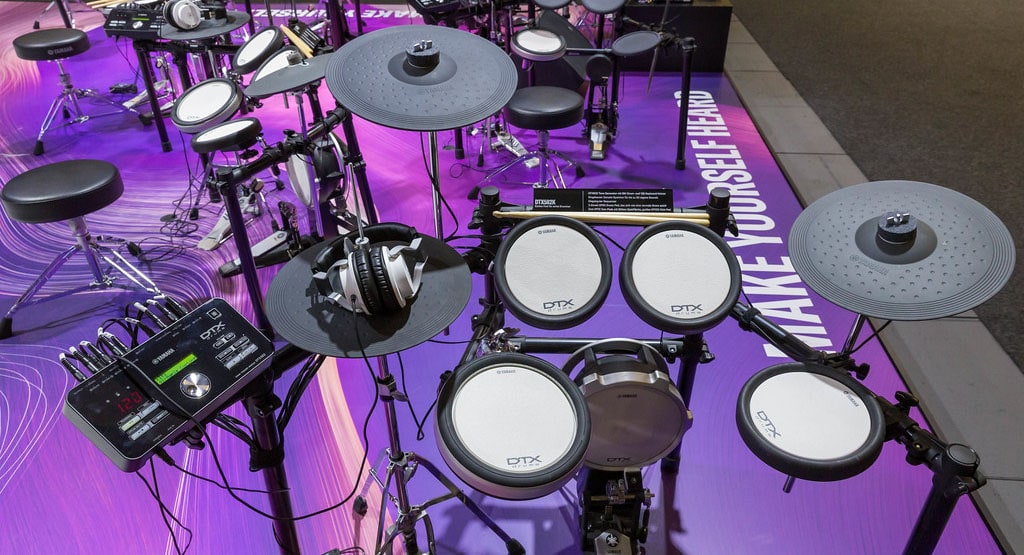
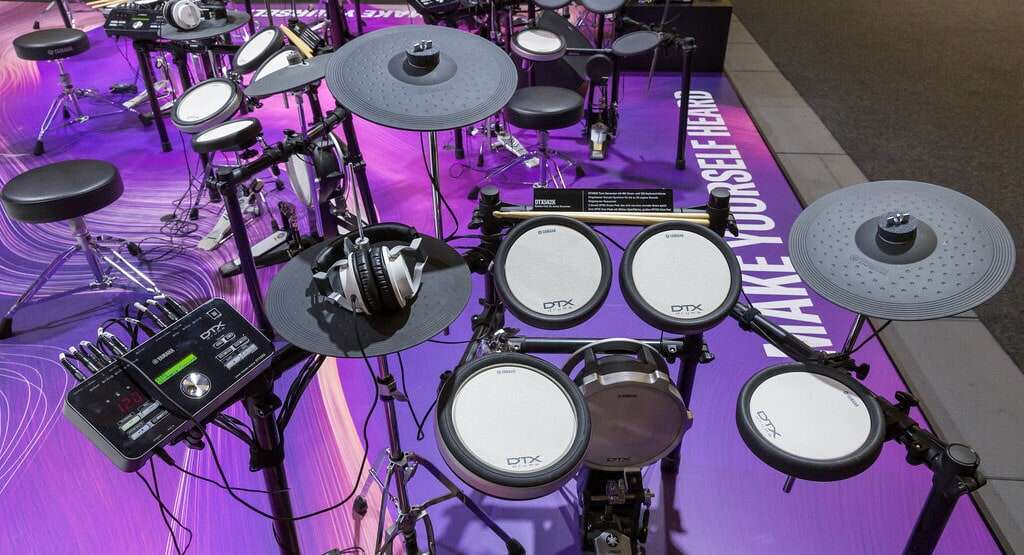
What You Need to Record an Electronic Drum Kit
Before you record, gather the right gear. Electronic drums are simple to connect, but each part affects the final sound.
You will usually need:
• An electronic drum kit with a sound module
• A computer with a digital audio workstation, such as GarageBand, Logic Pro, Pro Tools, Ableton Live, Reaper, or Studio One
• An audio interface with suitable inputs
• USB, MIDI, or audio cables
• Headphones or studio monitors
• A stable drum throne and a quiet playing space
• Optional drum software, such as a virtual instrument or drum sampler
Your drum module may offer several outputs. Common options include stereo audio outputs, individual outputs, USB audio, USB MIDI, and five-pin MIDI ports. Check the labels on the rear panel before buying cables.
A basic setup may use only a USB cable. A more advanced setup may use several audio cables from the module to an audio interface. The best method depends on whether you want the module’s built-in sounds or more control during mixing.
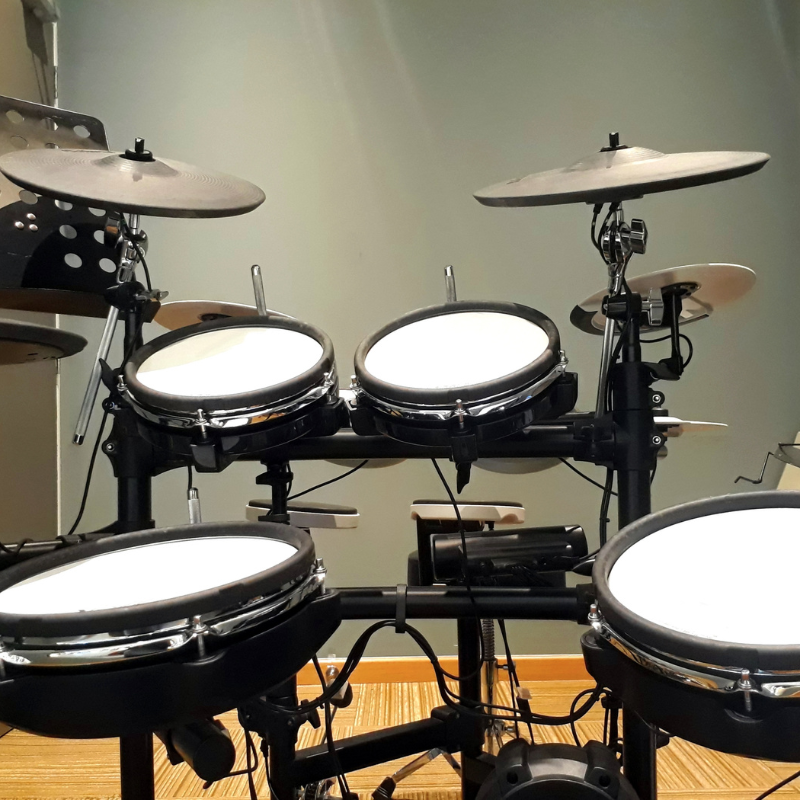
Audio Recording vs. MIDI Recording
The first major choice in how to record an electronic drum kit is deciding between audio and MIDI.
Audio recording captures the sound that your drum module creates. MIDI recording captures performance information, such as which pad you hit, how hard you hit it, and when you hit it. Think of audio as a finished photograph and MIDI as the camera data that lets you change the picture later.
Recording audio
Audio is the simplest option. Connect the drum module to your interface, select the correct input in your DAW, and record.
Audio works well when:
• You like the module’s drum sounds
• You want a fast and simple workflow
• You are recording a rehearsal or live performance
• You do not plan to change every drum hit later
The main limitation is flexibility. Once recorded, the snare sound, room effect, and compression are part of the audio file. You can still process the track, but you cannot fully replace each drum voice without extra editing.
Recording MIDI
MIDI gives you much more control. You can change the drum kit, adjust individual notes, fix timing, alter velocity, and trigger a software drum instrument.
MIDI works well when:
• You want realistic studio drum sounds
• You need to correct small timing errors
• You want separate kick, snare, tom, and cymbal tracks
• You are producing music with detailed drum editing
MIDI does not contain sound by itself. You must send it to a drum plug-in, drum sampler, or hardware sound module. You may also need to map your electronic drum pads to the correct notes in the software.
For most modern home studios, recording MIDI first is the safest choice. You can always turn the MIDI performance into audio later.

How to Record an Electronic Drum Kit Through USB
USB is often the easiest way to connect an electronic drum kit to a computer. Many newer modules send MIDI through USB, while some also send multichannel audio.
Start by installing any required driver or module software. Some devices work as class-compliant USB instruments, while others need a manufacturer driver. Use a direct computer connection when possible instead of routing the module through an unpowered USB hub.
Follow these steps:
-
Connect the module’s USB port to your computer.
-
Turn on the drum module before opening your DAW.
-
Select the module as the MIDI input device.
-
Create a MIDI or instrument track.
-
Choose the correct drum software or module input.
-
Enable monitoring if you need to hear the software sound.
-
Play each pad and watch for MIDI activity.
-
Record a short test before tracking the full performance.
If the DAW receives MIDI but the software makes no sound, check the instrument track, MIDI channel, drum map, and output routing. A common issue is that the module sends notes on one MIDI channel while the software listens on another.
USB audio can be very useful because it may reduce the need for separate analog cables. However, the available channels vary by model. Some modules send only stereo audio, while others send separate drum channels.
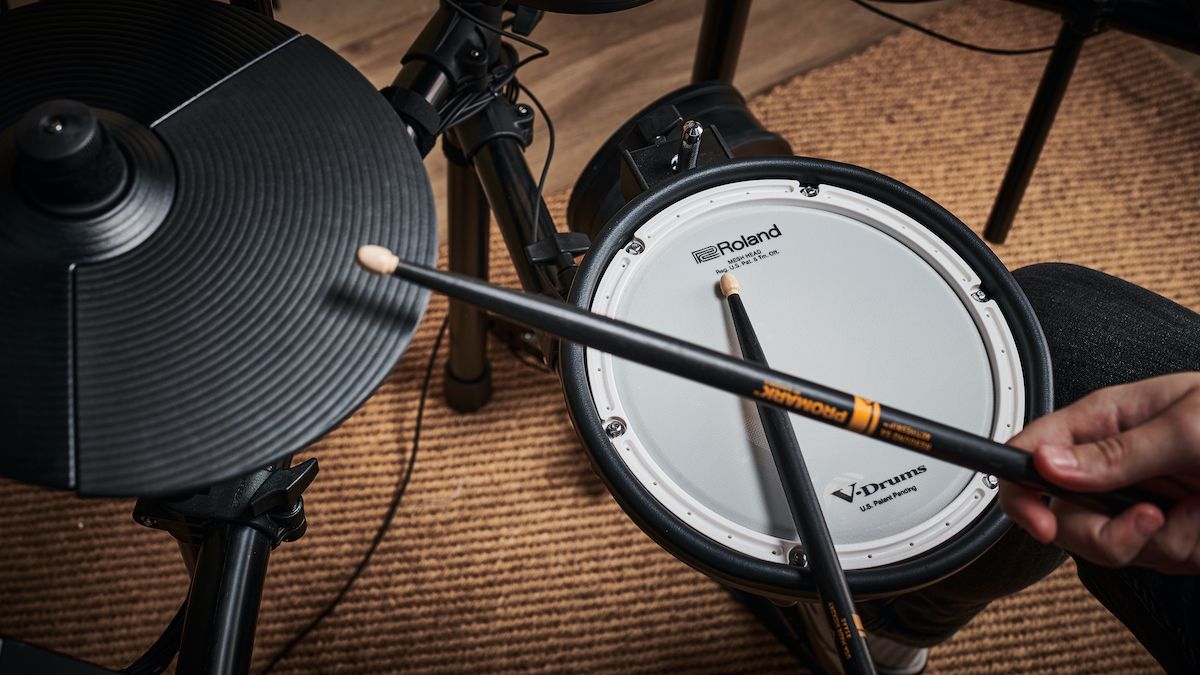
How to Record an Electronic Drum Kit Through MIDI
MIDI gives you the most editing power, but it requires careful setup.
Connect the module with a USB MIDI cable or five-pin MIDI cables. If you use five-pin MIDI, connect the module’s MIDI Out to the interface’s MIDI In. Do not connect MIDI Out to MIDI Out, because both devices would try to send data instead of receiving it.
In your DAW, create a MIDI track and select the drum module as the input. Set the track to record MIDI notes. If you plan to use a virtual drum instrument, load it on the same track or route the MIDI to a separate instrument track.
Play a few notes on every pad. Confirm that:
• The kick triggers the kick sound
• The snare triggers the snare sound
• The rim produces the correct rim sound
• The hi-hat opens and closes correctly
• The toms use the correct notes
• The cymbal choke function works
Your module may have a local control setting. Local control determines whether the pads trigger the module’s internal sounds. If you hear doubled notes, turn local control off or mute one of the sound paths.
Latency is another key concern. Latency is the delay between hitting a pad and hearing the sound. A buffer size of 64 or 128 samples often feels responsive, but your computer may need a larger buffer for complex sessions.
Use a smaller buffer while recording. Increase it later when mixing to reduce computer strain.