What Does A USB Look Like On A Piano Keyboard: Quick Guide
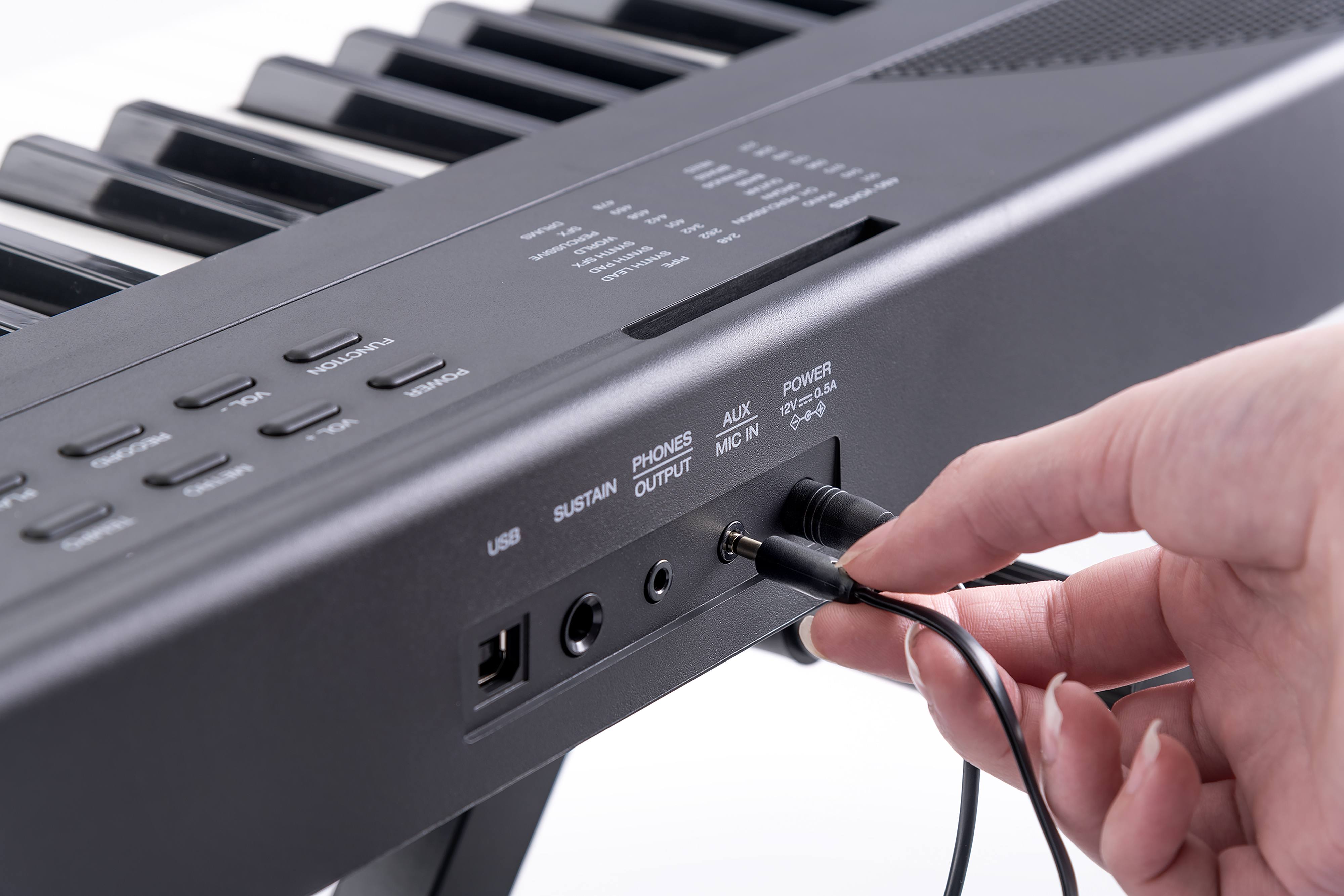
A USB on a piano keyboard is usually a small rectangular port labeled “USB TO HOST” or “USB DEVICE.”
If you are wondering what does a usb look like on a piano keyboard, the answer depends on the keyboard model. Most digital pianos use a square USB Type-B port, while newer models may use USB-C or a small USB-A port for a flash drive. This guide explains each shape, label, purpose, and common mistake so you can identify the right connection with confidence.
What Does a USB Look Like on a Piano Keyboard?
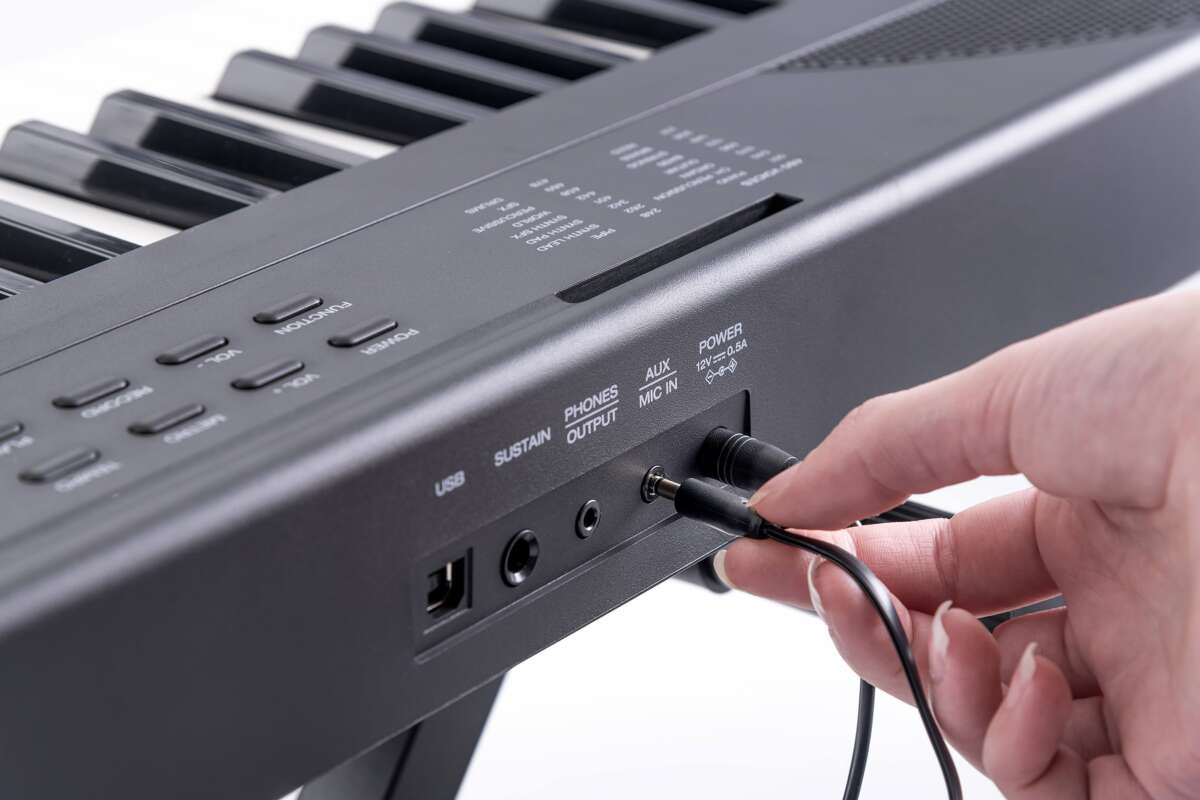
A USB port on a piano keyboard is usually found on the back or side panel. It looks different from the round MIDI ports and the larger audio jacks beside it.
The most common port is USB Type-B. It has a nearly square shape with two sloped top corners. Many people know it as the “printer USB” port because printers often use the same connector.
When people ask what does a usb look like on a piano keyboard, they may mean either the port on the instrument or the cable that fits into it. The keyboard port is often female, meaning it has a socket. The cable has a matching male plug.
Common USB ports on digital pianos include:
• USB Type-B: A square port used to connect the keyboard to a computer or tablet.
• USB-C: A small, rounded rectangle found on some newer keyboards.
• USB Type-A: A flat, wide rectangle that may accept a USB flash drive.
• Micro-USB: A small, narrow port found on some compact or older MIDI keyboards.
Do not confuse a USB port with a MIDI DIN port. A MIDI port is round and has five small holes. A USB port is rectangular and usually has a USB symbol or a label near it.

Common USB Port Types on Digital Pianos
Digital piano makers use different USB connectors for different jobs. The port shape can tell you a lot, but the printed label matters just as much.
USB Type-B
USB Type-B is the most common connection on home digital pianos and electronic keyboards. It has a square body with gently angled upper corners.
It normally connects the keyboard to:
• A desktop computer
• A laptop
• A music production program
• A digital audio workstation
• A compatible tablet through an adapter
One end of the cable uses the square Type-B plug. The other end is often USB Type-A or USB-C, depending on your computer.
USB-C
USB-C is small, thin, and oval-shaped. Unlike USB Type-B, it does not have a square body. You can insert a USB-C plug in either direction.
Newer keyboards may use USB-C for:
• MIDI data
• Firmware updates
• Computer connection
• Charging
• Audio, if the keyboard supports USB audio
USB-C does not automatically mean the keyboard supports every USB feature. The manufacturer must design the instrument to support those functions.
USB Type-A
USB Type-A is the familiar wide, flat USB port found on computers and flash drives. On a keyboard, it may be labeled “USB TO DEVICE” or “USB MEMORY.”
This port often lets you:
• Save songs to a flash drive
• Load MIDI files
• Play back recorded performances
• Install approved updates
• Transfer user data
A Type-A port on a piano is not always meant for connecting to a computer. It may be designed only for USB storage.
Micro-USB
Micro-USB is smaller than USB Type-B and has a thin, slightly trapezoid shape. Some small MIDI controllers and older portable keyboards use it.
This connector is less common on full-size digital pianos. It can also feel loose after years of use, so avoid pulling the cable sideways.

Where Is the USB Port on a Piano Keyboard?
The USB port is usually on the rear panel. Some portable keyboards place it on the left or right side for easier access.
Look near these other connections:
• DC power input
• Sustain pedal jack
• Headphone output
• Audio output
• MIDI IN and MIDI OUT
• Expression pedal input
• Bluetooth or wireless labels
The port may be hidden under a small plastic cover. This is common on stage pianos and compact keyboards.
If you are checking what does a usb look like on a piano keyboard in person, use a flashlight and inspect the printed labels. The words “USB TO HOST” usually mean the port connects the keyboard to a computer. “USB TO DEVICE” usually means the port accepts a flash drive or other storage device.
Never force a cable into a port. USB plugs only fit one way, except USB-C plugs, which are reversible.

What Do the USB Labels Mean?
The label beside the port explains its intended use. This is more useful than judging the shape alone.
USB TO HOST
“USB TO HOST” means the keyboard can communicate with a host device. A computer, tablet, or phone is usually the host.
This connection may send and receive:
• MIDI notes
• Pedal data
• Control changes
• System messages
• Digital audio on supported models
For example, you can connect a digital piano to a laptop and use a piano software instrument. The keyboard sends your key presses as MIDI data, and the software creates the sound.
USB TO DEVICE
“USB TO DEVICE” usually means the keyboard can read a USB flash drive. It may allow you to store songs, load settings, or play MIDI files.
This port is not necessarily a computer connection. Plugging a Type-B computer cable into it is not possible because the shape and purpose are different.
USB MEMORY
Some brands use the term “USB MEMORY.” This label points to a storage port. It usually works with a USB flash drive rather than a computer.
Read the owner’s manual before using a flash drive. Some pianos support only certain file formats, storage sizes, or file systems.

What Can a USB Connection Do on a Digital Piano?
A USB connection can perform several tasks, but its abilities depend on the keyboard model.
USB MIDI
USB MIDI sends performance information rather than recorded sound. When you press a key, the keyboard can send details such as:
• Which note you played
• How hard you played it
• When you released it
• Which pedal you used
• How much the pitch wheel moved
MIDI is like a set of instructions. It tells software what happened, but it does not always contain the piano sound itself.
USB Audio
Some digital pianos send actual audio through USB. This can reduce the need for a separate audio interface.
With USB audio, you may be able to record the keyboard’s internal sound directly into recording software. However, not every USB port supports audio. Some carry MIDI only.
File Transfer
A USB storage port may let you transfer:
• MIDI song files
• Recorded performances
• Registration memories
• Sound settings
• Firmware update files
Always use the file types listed in the manual. A keyboard may not recognize ordinary audio files such as MP3 or WAV unless it specifically supports them.
Firmware Updates
Manufacturers sometimes release updates that improve stability or add features. These updates may require a USB flash drive or a computer connection.
Use only the correct update file for your exact model. Installing the wrong file can cause serious problems.

USB Versus MIDI on a Piano Keyboard
USB and MIDI are related, but they are not the same thing.
Traditional MIDI uses round five-pin DIN connectors. USB uses a rectangular connector and carries MIDI data through a digital USB connection.
Here is a simple comparison:
• USB MIDI: Connects to modern computers and mobile devices.
• Five-pin MIDI: Connects to older keyboards, sound modules, and professional MIDI equipment.
• USB audio: Carries digital sound when the keyboard supports it.
• Analog audio: Carries sound through headphone or line-out jacks.
A keyboard may have both USB and traditional MIDI ports. They can often perform similar MIDI tasks, but they use different cables and connection methods.
When identifying what does a usb look like on a piano keyboard, remember that the USB port will never look like the round five-pin MIDI socket. This simple difference prevents many setup errors.

How to Connect a Piano Keyboard to a Computer
Connecting a keyboard is usually simple when you use the correct port and cable.
-
Turn down the keyboard volume.
-
Turn off the keyboard if the manual recommends doing so.
-
Find the port labeled “USB TO HOST.”
-
Plug the square Type-B end into the keyboard if it uses USB Type-B.
-
Plug the other end into the computer.
-
Turn on the keyboard.
-
Open your music software and select the keyboard as a MIDI input.
-
Test a few notes.
A modern computer may have only USB-C ports. In that case, use a USB-B-to-USB-C cable or a suitable adapter.
Avoid cheap, damaged, or unusually long cables. A poor cable can cause dropped connections, delayed notes, or random disconnections.
In real home studio setups, the most common mistake is plugging into a “USB TO DEVICE” port and expecting computer MIDI. The port may accept only a flash drive. Checking the label first saves time.

How to Connect a USB Flash Drive
If your piano has a USB Type-A port, it may support a flash drive. This port usually looks like the wide rectangular USB port on a computer.
Follow these steps:
-
Format the flash drive only if the manual instructs you to do so.
-
Copy supported files to the drive.
-
Insert the drive gently into the USB port.
-
Open the keyboard’s file or media menu.
-
Choose the load, save, or playback option.
-
Eject the drive through the keyboard menu when available.
Do not remove the flash drive while the instrument is saving or loading data. Interrupting the process can damage the file or, in rare cases, affect the keyboard’s internal data.
Some digital pianos work best with small USB flash drives. A newer high-capacity drive may not be recognized if the keyboard has limits on storage size or formatting.
Mistakes to Avoid When Identifying a USB Port
A few simple errors can lead to frustration or damage.
Mistaking a USB Port for an Audio Jack
Headphone and line-out jacks are round. USB ports are rectangular. Do not push a USB plug into any round connection.
Using the Wrong USB Cable
A Type-B keyboard port needs a Type-B cable. A USB-C keyboard needs a USB-C cable or an approved compatible cable.
The plug must match the port physically, but matching shape alone does not guarantee full function. Some cables support charging only, while others support data.
Assuming Every USB Port Carries Audio
Many keyboards use USB for MIDI only. If you need to record the actual piano sound, check whether the specifications list USB audio. Otherwise, use the line outputs and an audio interface.
Forcing the Connector
USB Type-B and Micro-USB connectors have a correct direction. Apply gentle pressure only. If the plug does not slide in easily, inspect the port and connector.
Ignoring the Manual
Product photos can help, but the manual gives the most reliable information. It explains supported devices, file formats, cable types, and connection limits.
A Practical Way to Recognize the Port
If you are still unsure what does a usb look like on a piano keyboard, use this quick identification method.
-
Look for the USB trident symbol.
-
Read the words near the port.
-
Check whether the opening is square, oval, or wide and flat.
-
Compare it with the cable plug.
-
Search the exact keyboard model in the manual.
-
Confirm whether you need a computer, tablet, or flash drive.
The square USB Type-B port is the strongest clue for a computer connection. The wide USB Type-A port often points to flash-drive support. A small oval USB-C port may support several functions, but its exact role must be confirmed.
Take a clear photo of the rear panel if you need help from a music store or support team. A photo that includes the labels is much more useful than a close-up of the port alone.
Benefits and Limits of USB on a Piano Keyboard
USB makes digital piano connections easier and more flexible. One cable can link the instrument to learning apps, notation software, recording programs, or virtual instruments.
Main benefits include:
• Easy MIDI connection
• Fast access to music software
• Simple file storage on supported models
• Digital recording on keyboards with USB audio
• Fewer cables than some older setups
USB also has limits. A USB port does not always power the keyboard, replace an audio interface, or support a flash drive. The port’s design and the keyboard’s internal software determine what it can do.
Another limit is compatibility. A keyboard from one brand may support fewer file types or functions than a newer model. This is why accurate model-specific information matters more than general USB advice.
Frequently Asked Questions About What Does a USB Look Like on a Piano Keyboard
What does a USB port look like on a digital piano?
Most digital pianos have a square USB Type-B port labeled “USB TO HOST.” Some newer models use a small oval USB-C port, while others include a wide USB Type-A port for a flash drive.
Is the USB port on a piano the same as a printer port?
Often, yes. Many digital pianos use USB Type-B, which is also common on printers. It has a square shape with angled upper corners.
Can I use any USB cable with my piano keyboard?
No. The cable must match the keyboard’s port and support the needed function. For example, a USB Type-B keyboard usually needs a USB-B data cable, not a charging-only cable.
Does USB on a piano carry sound?
Sometimes. Many USB ports carry MIDI data only, while some newer keyboards also support USB audio. Check the specifications or manual to confirm.
What is the difference between USB TO HOST and USB TO DEVICE?
USB TO HOST usually connects the keyboard to a computer, tablet, or phone. USB TO DEVICE usually connects to a flash drive or other storage device.
Can I connect a USB flash drive to any piano keyboard?
No. The keyboard must have a compatible USB TO DEVICE or USB MEMORY port. It may also require a specific storage format and supported file type.
How can I identify a USB port if there is no label?
Look for the USB symbol and examine the shape. A square port is often USB Type-B, a small oval port is usually USB-C, and a wide flat port is USB Type-A.
Conclusion
A USB on a piano keyboard is usually a rectangular connection on the back or side of the instrument. The square USB Type-B port commonly connects to a computer, while USB-C may serve newer devices and USB Type-A often supports flash drives.
The best way to understand what does a usb look like on a piano keyboard is to check both the port shape and its label. Look for terms such as “USB TO HOST,” “USB TO DEVICE,” or “USB MEMORY,” and confirm the function in your keyboard’s manual.
Use the correct cable, avoid forcing plugs, and test the connection with simple software or files first. If this guide helped, explore your keyboard’s manual for advanced MIDI, recording, and file-transfer features, and share your setup or questions in the comments.

Senior Music Reviewer
Alex Carter is a seasoned music reviewer with over a decade of experience in the world of sound and instruments. Passionate about helping musicians and enthusiasts make informed choices, he brings sharp insights and in-depth knowledge to every review. From classical instruments to modern gear, Alex combines technical expertise with a love for music to deliver content that resonates with readers.
As a Senior Music Reviewer and expert author on Tuneluma.com, Alex is dedicated to sharing honest evaluations, practical advice, and thoughtful commentary to guide readers in their musical journey.