Introduction
If you are in the United States and want to play piano in garageband, you have three easy options: use your computer keyboard, tap the on-screen keyboard on an iPhone or iPad, or connect a USB or Bluetooth MIDI keyboard. Open GarageBand, create a new project, choose a keyboard or piano sound, and play.
The best method depends on your device. A Mac gives you Musical Typing, while an iPhone or iPad gives you a touch piano keyboard. A MIDI keyboard offers the most natural feel and better control.
This guide explains each method, how to record your playing, how to change sounds, and what to check when the piano does not make a sound.
What You Need Before You Start
You need GarageBand installed on one supported Apple device:
- A Mac running GarageBand for macOS
- An iPhone running GarageBand for iOS
- An iPad running GarageBand for iPadOS
You do not need a real piano to begin. You can play with your Mac keyboard or your device’s touch screen.
For a more realistic playing experience, use a MIDI keyboard. MIDI sends note and control data to GarageBand. It does not send recorded audio. GarageBand then uses that information to create the piano sound.
Your three main options
| Method | Best for | Main benefit | Main limit |
|---|---|---|---|
| Mac Musical Typing | Quick practice | No extra equipment | Computer keys do not feel like piano keys |
| iPhone or iPad touch keyboard | Mobile practice | Easy to use anywhere | Less control and playing space |
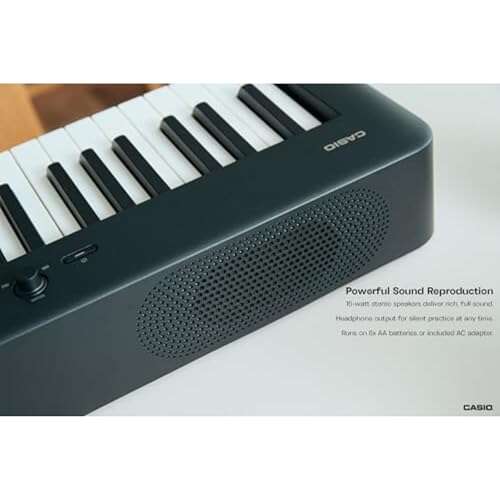
| USB or Bluetooth MIDI keyboard | Recording and learning | Real keys and better expression | Requires extra hardware |
GarageBand also supports an audio keyboard or piano connected through an audio interface. That setup records sound as audio, rather than receiving MIDI notes. For most beginners, a MIDI keyboard is simpler.
How to Play Piano in GarageBand on a Mac
On a Mac, the fastest way to play piano is to open Musical Typing. This turns your computer keyboard into a basic piano keyboard.
Step 1: Create a new GarageBand project
- Open GarageBand on your Mac.
- Select Empty Project.
- Click Choose.
- When GarageBand asks for a track type, select Software Instrument.
- Click Create.
A software instrument track lets GarageBand create a piano sound from MIDI notes. If you choose an audio track instead, your computer keyboard will not play the piano instrument.
Step 2: Choose a piano sound
GarageBand may load a default instrument. To select a piano:
- Open the Library on the left side of the window.
- Select Piano or Keyboard.
- Choose a sound such as a grand piano, studio piano, or electric piano.
The exact names can vary by GarageBand version and installed sound library. If the sound library is not installed, GarageBand may ask you to download additional sounds.
Step 3: Open Musical Typing
Use one of these methods:
- Choose Window > Show Musical Typing
- Press Command- K
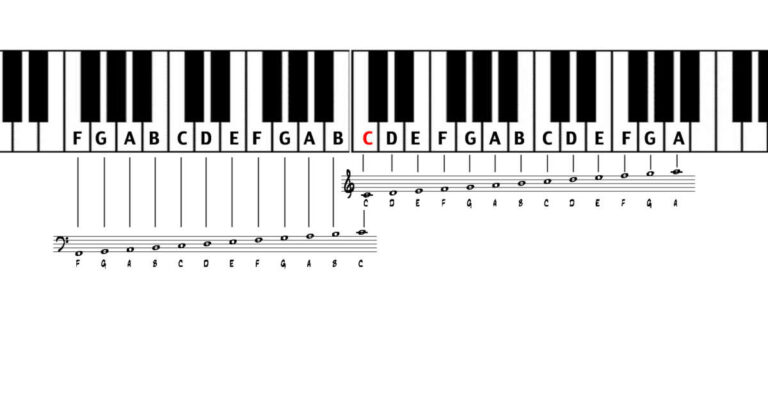
A small keyboard window will appear. It shows which computer keys play which notes.
Step 4: Play notes
The letter keys act as piano keys. On many GarageBand setups:
- The lower row of letter keys plays the white keys.
- Nearby letter keys play the black keys.
- The Z and X keys move the keyboard down or up by octaves.
- The C and V keys lower or raise the playing velocity.
Velocity controls how hard a MIDI note plays. A higher velocity usually creates a louder or brighter piano sound.
Your layout may differ slightly by GarageBand version or keyboard language. Use the Musical Typing window as the guide.
Step 5: Record your playing
To record:
- Select the software instrument track.
- Place the playhead where you want the recording to begin.
- Click the red Record button.
- Play using Musical Typing.
- Click Stop when you finish.
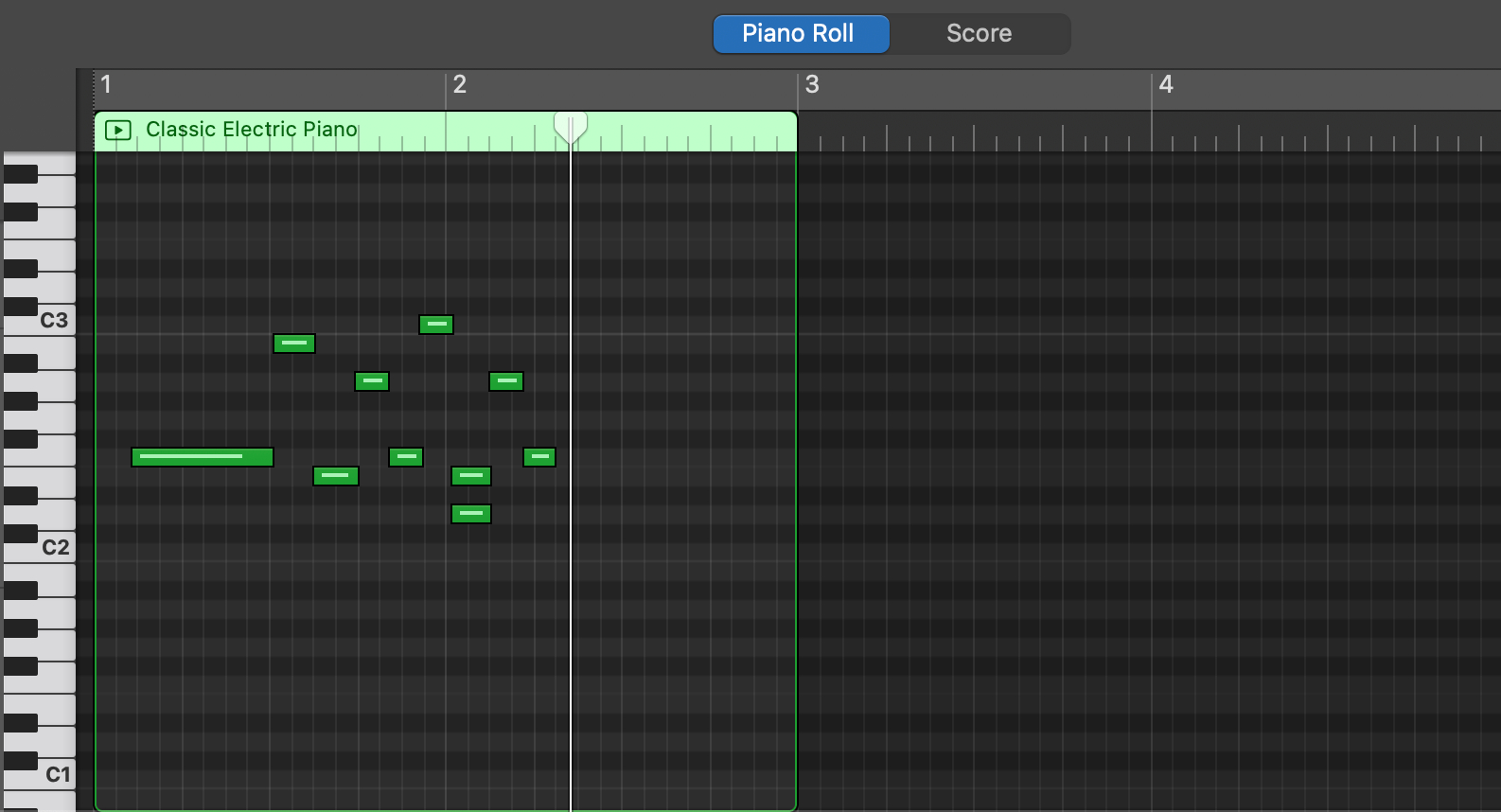
GarageBand saves the notes as a MIDI region. You can then move notes, change their timing, or switch to another piano sound without recording again.
Signs that it is working
You should see all of the following:
- The software instrument track is selected.
- The Musical Typing window responds when you press a key.
- A piano sound comes from your Mac.
- A colored region appears on the timeline after recording.
- The region contains editable MIDI notes in the Piano Roll.
If the keys respond but you hear nothing, check the output volume, track volume, mute status, and selected audio device.

How to Play Piano in GarageBand on an iPhone or iPad
GarageBand for iPhone and iPad includes a touch instrument called Keyboard. It lets you tap piano keys on the screen.
Step 1: Start a new song
- Open GarageBand.
- Tap the Add Song or plus button.
- Choose Keyboard from the instrument browser.
- Tap the keyboard instrument to open it.
The exact button labels may differ between iPhone and iPad. The instrument browser is the screen that displays GarageBand’s available touch instruments.
Step 2: Select a piano
Tap the sound name near the top of the screen. Choose a piano, electric piano, or another keyboard sound.
You can use the search or category controls if your version includes them. If you select a synthesizer or organ, the keys will still work, but the sound will not be an acoustic piano.
Step 3: Play the on-screen keyboard
Tap the keys on the screen. You can usually:
- Slide across keys for smooth movement
- Move the keyboard left or right to reach other notes
- Change the visible octave
- Adjust touch sensitivity or other keyboard controls
- Use sustain if the selected instrument supports it
On an iPad, the larger screen gives you more room to play. On an iPhone, you may need to move the keyboard often to reach notes outside the visible range.
Step 4: Record your performance
- Tap the red Record button.
- Wait for the count-in if one is enabled.
- Play the keyboard.
- Tap Stop when finished.
GarageBand creates a region in the song timeline. Tap the region to edit, trim, move, or delete it.
Use the sustain control carefully
A sustain control can make notes continue after you lift your finger. This can help create a connected piano sound. Too much sustain, however, can make fast music sound muddy.
If your GarageBand keyboard shows a sustain button, tap it only when you want notes to ring. For a more natural result, a MIDI pedal connected to a compatible MIDI keyboard gives better control.

How to Connect a MIDI Keyboard to GarageBand
A MIDI keyboard is the best choice if you want to practice piano, record with both hands, or control note volume more naturally.
Connect a MIDI keyboard to a Mac
Most USB MIDI keyboards work through a USB cable. Newer Macs may need a USB adapter or hub, depending on the keyboard connector and Mac ports.
- Connect the keyboard to your Mac.
- Turn on the keyboard if it has a power switch.
- Open GarageBand.
- Create or select a software instrument track.
- Choose a piano sound.
- Press a key on the MIDI keyboard.
GarageBand normally detects the keyboard automatically. You do not need to connect the keyboard to an audio input because MIDI is data, not audio.
Connect a MIDI keyboard to an iPhone or iPad
Your setup depends on the keyboard connection:
- A USB MIDI keyboard may need a compatible adapter.
- A keyboard with Bluetooth MIDI may connect through GarageBand or the device’s MIDI settings.
- A powered USB hub may help if the keyboard draws more power than the iPhone or iPad can provide.
After connecting the keyboard:
- Open GarageBand.
- Select the Keyboard touch instrument.
- Choose a piano sound.
- Play a key.
If the keyboard has speakers, those speakers may not play GarageBand’s sound. GarageBand usually sends audio through the iPhone, iPad, Mac, headphones, or connected audio interface.
MIDI versus audio: why the difference matters
MIDI records musical instructions such as:
- Which note you played
- When you played it
- How hard you played it
- How long you held it
Because MIDI stores performance data, you can change the piano sound after recording. You can also correct individual notes in the Piano Roll.
An audio recording captures the sound itself. If you record an acoustic piano through a microphone, you cannot change each note in the same way.
How to Make GarageBand Sound Like a Piano
Choose a piano patch first, then adjust the sound only as needed. A clean piano preset is usually easier to control than a heavily processed effect.
Start with the right instrument
Select a category such as:
- Acoustic Piano
- Grand Piano
- Studio Piano
- Electric Piano
An acoustic piano patch usually works best for basic practice. An electric piano may suit pop, jazz, funk, or a softer song.
Adjust the main controls
Useful controls may include:
- Volume: Changes how loud the track is.
- Reverb: Adds the sense of space around the piano.
- Echo: Repeats notes after you play them.
- Tone or brightness: Changes the balance between dark and bright sound.
- Compressor: Reduces volume differences between loud and soft notes.
Use small changes. Too much reverb can hide timing errors. Too much echo can make separate notes run together.
Use headphones when needed
Headphones can make it easier to hear quiet notes. They also reduce feedback when you use a microphone or an audio interface.
Keep the volume at a comfortable level. If your ears feel tired or you need to raise the volume to an uncomfortable level, take a break and lower it.

How to Record, Edit, and Practice Piano Parts
GarageBand is useful not only for playing piano but also for improving a performance.
Record with a count-in
A count-in gives you a few beats before recording starts. Turn it on if you need time to prepare your hands.
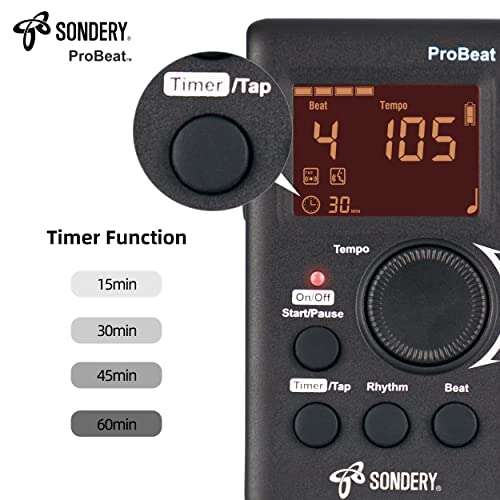
A metronome can help you keep a steady beat. Start at a slow tempo, record a short section, and increase the tempo only when the notes feel controlled.
Edit MIDI notes
If you recorded with Musical Typing or a MIDI keyboard:
- Select the MIDI region.
- Open the Piano Roll editor.
- Click or tap a note to move it.
- Drag the note to change its length.
- Move the note left or right to change its timing.
- Delete notes that you do not want.
Do not correct every small difference automatically. Slight changes in timing and velocity can make a part feel more human.
Quantize timing when needed
Quantization moves notes toward a beat grid. It can help when your rhythm is uneven.
Use it with care. Strong quantization can remove natural movement from a performance. Try a lighter setting first, then listen to the result.
Loop a difficult section
You can repeat a short part of a song to practice it. Looping works well for:
- Chord changes
- Left-hand patterns
- Short melodies
- Difficult transitions
- Sections with uneven timing
Practice slowly, then raise the tempo in small steps.

GarageBand Piano Troubleshooting
Most playback problems come from the wrong track type, a muted track, an incorrect output device, or a missing connection.
The keys do not make a sound
Check these items in order:
- Make sure a software instrument track is selected.
- Confirm that the track is not muted.
- Raise the track volume and master volume.
- Check your Mac, iPhone, or iPad volume.
- Confirm that headphones or speakers are connected to the device you are using.
- Choose the correct audio output in GarageBand or the device settings.
- Select a piano sound again.
- Close and reopen GarageBand if the problem remains.
If Musical Typing shows key activity but you hear nothing, the input is probably working. Focus on the output device and volume settings.
The MIDI keyboard is not detected
Try the following:
- Disconnect and reconnect the USB cable.
- Try another USB port or adapter.
- Turn the keyboard off and on.
- Close other music apps that may be using the keyboard.
- Open a software instrument track instead of an audio track.
- Check whether the keyboard needs external power.
- Test the keyboard with another compatible app.
Bluetooth MIDI devices may need to be paired again. A Bluetooth audio connection is not the same as a Bluetooth MIDI connection, so make sure the keyboard supports MIDI over Bluetooth.
There is a delay between pressing a key and hearing sound
This delay is called latency. It can result from heavy effects, a busy project, wireless audio, or a slow connection.
Try these changes:
- Use wired headphones instead of Bluetooth headphones.
- Close other apps.
- Reduce the number of active plug-ins.
- Lower the project load.
- Use a smaller buffer setting if GarageBand provides that option.
- Connect the MIDI keyboard directly rather than through an unreliable hub.
Bluetooth headphones often add more delay than wired headphones. They may be fine for listening but less suitable for live piano playing.
The piano sounds too loud or distorted
Lower the track volume first. If the level meter reaches the top or turns red, the signal may be clipping.
You can also:
- Reduce velocity while playing.
- Lower the master output.
- Remove heavy compression or distortion.
- Check the volume on connected speakers.
- Avoid turning up every volume control at once.
A loud setting is not always a clear setting. Leave some headroom so strong notes do not overload the output.
The wrong notes play
If a MIDI keyboard produces unexpected notes:
- Check whether the keyboard has been transposed.
- Reset octave controls.
- Check the selected scale or touch instrument mode.
- Make sure the keyboard is using its normal layout.
- Test a plain piano patch.
On a Mac, remember that Musical Typing maps computer keys to notes. It does not behave exactly like a full-size piano.

Mac Musical Typing or a MIDI Keyboard: Which Should You Use?
Use Musical Typing if you want to try GarageBand without buying equipment. It is also useful for entering simple melodies, bass parts, and chords.
Choose a MIDI keyboard if you want to:
- Learn proper finger spacing
- Play two-handed parts
- Control dynamics more naturally
- Use a sustain pedal
- Record piano parts with better timing and expression
A small MIDI keyboard can be enough for melodies and basic chords. A larger keyboard gives you more range, but it also takes more space.
The key trade-off is control. Your Mac keyboard is convenient, but its keys are not shaped or weighted like piano keys. A MIDI keyboard feels more natural, but it adds cost, cables, and setup.

Common Mistakes to Avoid
Choosing an audio track
An audio track is for microphones, guitars, and other audio sources. It is not the right track for Musical Typing or a MIDI keyboard.
Choose Software Instrument when you want GarageBand to create a piano sound from key presses.
Expecting a computer keyboard to feel like a piano
Computer keys have short travel and little control over touch. Use them for quick parts, not as a full substitute for piano practice.
Using Bluetooth headphones for live playing
Wireless headphones may introduce delay. Use wired headphones when timing matters.
Recording without a count-in
You may start too early if recording begins at once. A count-in gives you time to place your hands and prepare.
Adding too many effects
Heavy reverb, echo, and compression can hide timing problems. Start with a plain piano sound and add effects slowly.
Forgetting to save or export
GarageBand saves projects in its own project format. To share the finished song, use the Share or Export option and select a format such as an audio file or song file. The available choices depend on the device and GarageBand version.
Key Takeaways
- On a Mac, use Software Instrument and Musical Typing.
- On an iPhone or iPad, choose the Keyboard touch instrument.
- For the best control, connect a USB or Bluetooth MIDI keyboard.
- Use wired headphones when Bluetooth delay affects your timing.
- Record MIDI when you want to edit notes or change the piano sound later.
- If there is no sound, check the track type, mute button, volume, and audio output first.
Frequently Asked Questions
Can I play piano in GarageBand without a keyboard?
Yes. On a Mac, use Musical Typing. On an iPhone or iPad, use the on-screen Keyboard instrument. These methods do not require a physical piano or MIDI controller.
Can I use my computer keyboard as a piano in GarageBand?
Yes. Open a software instrument track, choose a piano sound, and select Window > Show Musical Typing. On many Macs, Command-K opens Musical Typing.
Does GarageBand work with a USB MIDI keyboard?
Yes. Connect the keyboard, open a software instrument track, and select a piano sound. GarageBand generally detects compatible MIDI keyboards automatically.
Why is there a delay when I play piano in GarageBand?
The delay may come from Bluetooth headphones, audio processing, a busy project, or a poor connection. Try wired headphones, fewer effects, and a direct keyboard connection.
Can I connect a real piano to GarageBand?
It depends on the piano. A digital piano with USB MIDI, Bluetooth MIDI, or MIDI ports can often control GarageBand. An acoustic piano needs a microphone or audio interface to record its sound.
Can I use a sustain pedal in GarageBand?
Yes, when the pedal is connected to a compatible MIDI keyboard or digital piano. GarageBand must receive the pedal data through the MIDI connection.
Conclusion
To play piano in GarageBand, create a Software Instrument track and choose a piano sound. Use Musical Typing on a Mac, the touch keyboard on an iPhone or iPad, or a MIDI keyboard for the most realistic control.
Start with a plain piano patch, record a short section, and check that the notes appear in the timeline. If something fails, check the track type, device connection, audio output, and volume before changing advanced settings.
For your next step, open GarageBand, select a piano instrument, and play a four-bar pattern. Then record it and listen back once without editing. That simple test confirms that your device, sound, and recording setup are ready.

Senior Music Reviewer
Alex Carter is a seasoned music reviewer with over a decade of experience in the world of sound and instruments. Passionate about helping musicians and enthusiasts make informed choices, he brings sharp insights and in-depth knowledge to every review. From classical instruments to modern gear, Alex combines technical expertise with a love for music to deliver content that resonates with readers.
As a Senior Music Reviewer and expert author on Tuneluma.com, Alex is dedicated to sharing honest evaluations, practical advice, and thoughtful commentary to guide readers in their musical journey.