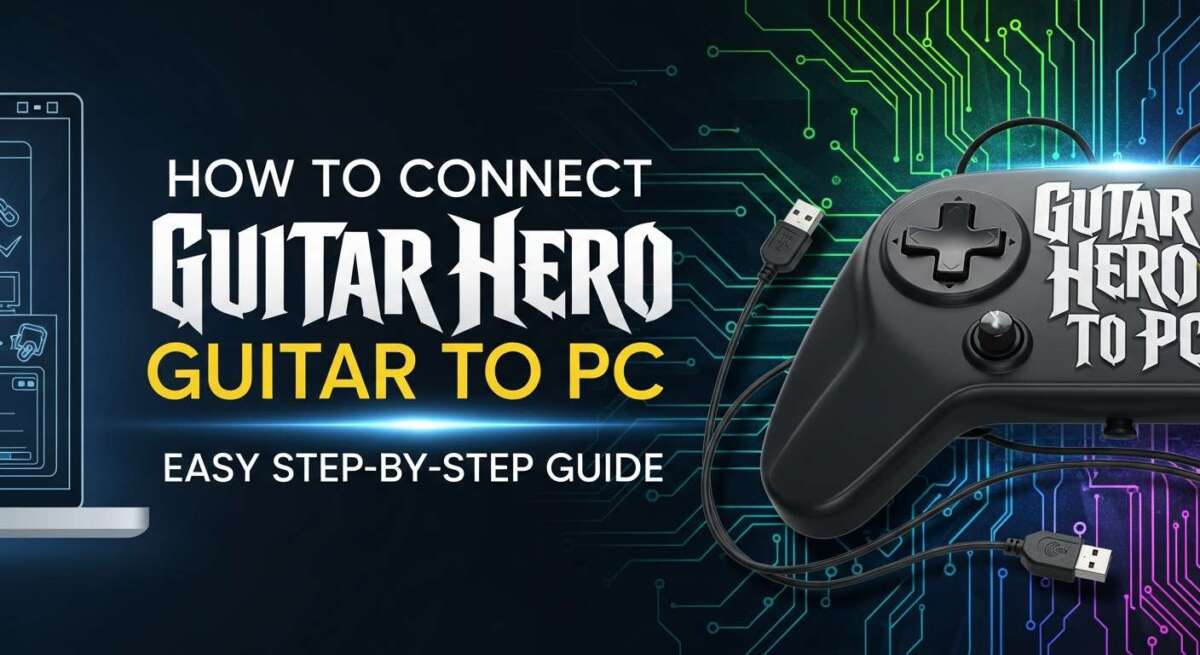
How to Connect Guitar Hero Guitar to Pc: Easy Step-by-Step Guide
If you’ve ever wanted to bring back the magic of Guitar Hero and relive those classic moments of hitting star power and shredding plastic frets, you’re not alone. I’ve been a huge rhythm-game fan since my teens, and I still remember the first time I tried to connect my Guitar Hero guitar to my PC. Honestly, it felt a bit confusing at first. However, once I figured it out, I realized the process was much easier than it looked.
So today, I’m here to walk you through how to connect Guitar Hero guitar to PC in the simplest, clearest way possible. I’ll speak to you like a fellow player, because that’s exactly who I am. Along the way, I’ll also share a couple of my personal moments—like the time I spent a whole afternoon hunting for a missing dongle only to find it inside the guitar case where I’d “definitely checked already.”
By the end of this article, you’ll know:
- Which Guitar Hero controllers work with PC
- Exactly how to sync a Guitar Hero guitar to your computer
- How to use USB dongles, wired cables, or Bluetooth
- How to set everything up in Clone Hero
- How to fix the most common issues players run into
My goal is to make you feel confident and ready to play. Let’s jump right in.
Required Gear Before You Start
Before we start connecting anything, we need the right gear. Thankfully, the list isn’t long. But because Guitar Hero controllers come in many forms and eras, it helps to know what you’re working with.
The Guitar Hero Guitar Models You Can Use
There are three main categories of Guitar Hero guitars:
- Xbox 360 guitars
- PlayStation 3 / PlayStation 2 guitars
- Nintendo Wii guitars
Furthermore, the models inside each category behave differently. For instance:
- Xbox 360 X-Plorer (wired) works perfectly with PC
- Xbox 360 Wireless Les Paul requires a Microsoft wireless receiver
- Wii Les Paul uses the Wiimote inside the guitar
- PS3 guitars often connect through USB or Bluetooth
This means Guitar Hero PC compatibility varies, and knowing your guitar model helps avoid headaches later. Don’t worry—I’ll guide you through each situation.
What a USB Receiver (Dongle) Does
If you’re using a wireless Guitar Hero guitar, you’ll almost always need a USB dongle. This small device plugs into your PC and acts like a bridge between the guitar and your computer.
Let me share a quick moment:
One time, I misplaced my PS3 Guitar Hero dongle the night before a Clone Hero session with friends. After searching everywhere and assuming I’d lost it forever, I finally found it wedged inside the seat pouch of my office chair—something that still baffles me. So trust me when I say: keep your dongles in one safe place.
PC Requirements and USB Ports
Most modern PCs have everything needed:
- USB 2.0 or USB 3.0 ports
- Windows 10 or Windows 11
- Bluetooth (if using Bluetooth-capable guitars)
Although Guitar Hero guitars also work on Linux and macOS, this guide focuses mainly on Windows since it offers the easiest setup and best game compatibility.
Credit: www.reddit.com
How to Connect Guitar Hero Guitar to PC (Step-by-Step Guide)
This is the core of what you’re here for, so I’ll walk you through it slowly, clearly, and in a hands-on tone that makes sense even if you’ve never connected a controller before.
Step 1 — Power Up and Prepare the Guitar
Before connecting, you need the guitar powered on. If it’s wireless:
- Insert fresh batteries
- Hold the power button until lights blink
- Make sure nothing is blocking the signal
Most Guitar Hero guitars have a single LED light that flashes when trying to sync. If the light doesn’t turn on, try swapping batteries first.
Step 2 — Connect Using a USB Dongle
This is the most common method.
- Plug the USB dongle into your PC
- Wait for your PC to install drivers automatically
- Press the sync button on the dongle
- Press the sync button on the guitar
- Wait until both lights turn solid
When both devices stop blinking, it means they’ve paired.
If you’re using:
- PS3 guitars → They must use the exact matching dongle
- Xbox 360 wireless guitars → They require the Microsoft wireless receiver
- Wii guitars → These cannot use a dongle and need the Wiimote inserted
Step 3 — Connect via Bluetooth (If Your Model Supports It)
Not every Guitar Hero guitar supports Bluetooth. But some PS3 models do.
To try Bluetooth:
- Enable Bluetooth on your PC
- Hold the sync button on the guitar until it blinks
- Open Settings > Bluetooth & Devices
- Select the guitar when it appears
Bluetooth sometimes has input delay, so it’s not always ideal for fast songs. Still, if it’s your only option, it’s worth trying.
Step 4 — Using a Wired Connection
Many wired guitars provide the smoothest gameplay because there’s no signal interference.
You simply:
- Plug the USB cable into your guitar
- Connect the other end to your PC
- Wait a few seconds for Windows to detect it
Wired guitars are great for reducing lag and improving accuracy, especially for Clone Hero users who want a crisp response.
Configure Your PC for First-Time Use
Once your guitar is connected, your PC needs to detect it correctly.
Install Drivers (Automatic and Manual)
Windows usually installs everything the moment you plug in the dongle or cable.
But sometimes you may need to:
- Open Device Manager
- Look for Human Interface Devices
- Install or update drivers manually
If your guitar appears with a yellow icon, right-click and update it.
Verify Device Recognition on PC
You can test the controller by:
- Searching “Set up USB game controllers”
- Selecting your Guitar Hero guitar
- Clicking Properties
- Pressing fret buttons to test them
If buttons light up here, your guitar works.

Credit: www.reddit.com
How to Use Your Guitar with Clone Hero
Clone Hero is the most popular rhythm game on PC today. If you haven’t heard of it yet, you’re in for a treat. I play it all the time because it lets you load custom songs, play local multiplayer, and use almost any Guitar Hero controller.
Why Clone Hero Is the Best Choice
It supports:
- Guitar Hero guitars
- Rock Band guitars
- Drum sets
- Dance mats (yes, people do this)
And the community is huge. If you ever get stuck, their Discord group is full of friendly players.
Mapping Buttons Inside Clone Hero
After opening Clone Hero:
- Go to Settings
- Select Controls
- Choose Assign Controller
- Press each button on your guitar as the game prompts
You’ll map:
- Green fret
- Red fret
- Yellow fret
- Blue fret
- Orange fret
- Strum up and down
- Star power tilt
- Whammy bar
After mapping, test your guitar in Practice Mode.
Optimize Clone Hero Performance
To reduce lag:
- Close background apps
- Use Fullscreen instead of Windowed
- Set VSync off
- Use wired mode if possible
- Keep the dongle close to your guitar
These steps help you play songs with fast strumming or complex hammer-ons.
Advanced Tips for Best Gameplay Experience
Let’s level up your setup.
Manage Batteries and Charger Tips
Wireless guitars eat batteries. So:
- Use rechargeables
- Keep spare batteries handy
- Turn guitar off between sessions
Improve Wireless Signal Quality
To avoid drops:
- Avoid routers and microwaves nearby
- Keep guitar 2–5 feet from the receiver
- Use a USB extension cable to position the dongle higher
Customize Controller Settings
You can tweak sensitivity:
- Whammy speed
- Tilt activation
- Dead zones
These help improve gameplay comfort.
Troubleshooting: Fix Common Problems FAST
Here’s a quick-fix guide for the most common issues.
Sync Issues
- Restart the guitar
- Press sync on both devices again
- Move closer to the dongle
Bluetooth Drops
- Re-pair device
- Update Bluetooth drivers
- Avoid interference
Driver Conflicts
- Uninstall old drivers
- Restart PC
- Reinstall through Device Manager
Latency or Lag
- Switch to Wired
- Lower graphics settings
- Disable VSync
Receiver Not Detected
- Try another USB port
- Check dongle light
- Test on another PC

Credit: www.youtube.com
Which Guitar Hero Guitars Work Best on PC? (Expert Recommendation)
Here are the most reliable models:
⭐ Xbox 360 X-Plorer (Wired)
Best plug-and-play performance.
⭐ Wii Les Paul (Wireless)
Works great with a Wiimote and DolphinBar.
⭐ PS3 Warriors of Rock Guitar
Sturdy and responsive with matching dongle.
⭐ Guitar Hero Live Guitar
Needs the specific Live dongle, but works well in Clone Hero.
Where to Buy Replacement Dongles and Adapters
You can find them on:
- Amazon
- eBay
- Clone Hero Discord
- Local gaming shops
Be sure the dongle matches your exact guitar model.
Best Software Tools for Guitar Hero Controllers
These tools help fine-tune your setup:
- DIView — tests button inputs
- HID Device Tester — checks response time
- USBDeview — resets USB history
Frequently Asked Questions
Can you use a Guitar Hero guitar on PC without a dongle?
Only if it’s a wired guitar or Bluetooth model.
Why won’t my PC detect my Guitar Hero guitar?
Usually it’s a driver issue or the dongle isn’t seated firmly.
Do Guitar Hero Live guitars work on PC?
Yes, but only with the Guitar Hero Live USB receiver.
Why is my strum bar not responding?
It may need cleaning or remapping in Clone Hero.