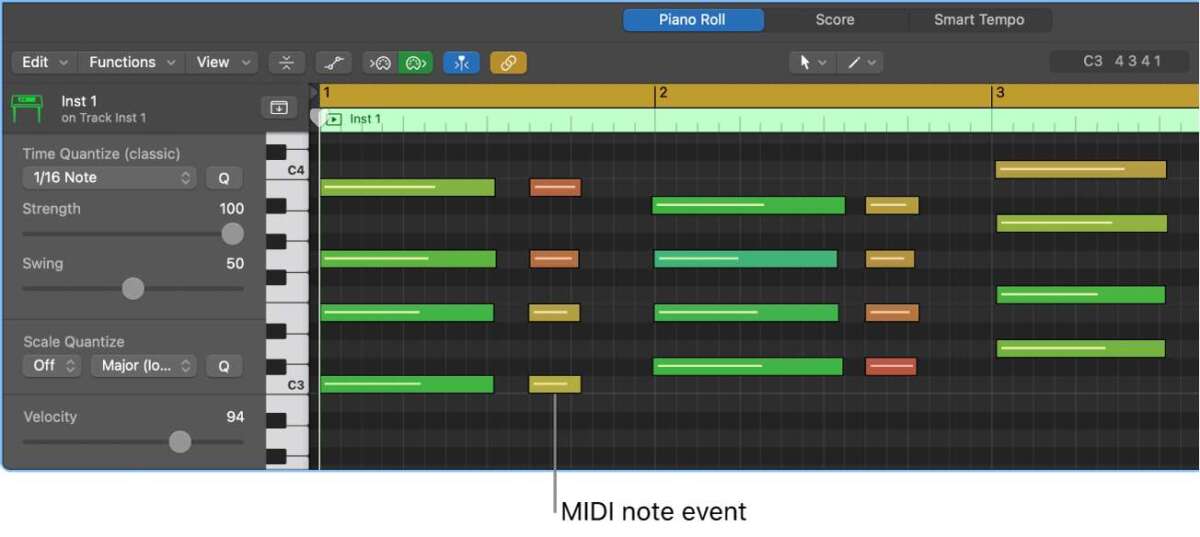
Select a MIDI region and press P to open the Piano Roll in Logic.
I’ve used Logic for years, and I’ll show you exactly how to open the piano roll on Logic, step by step. This guide covers quick shortcuts, menu paths, troubleshooting tips, and real-world tricks I learned from studio work. Read on to master how to open the piano roll on Logic and get into editing your MIDI fast and clean.

Why open the Piano Roll in Logic?
The Piano Roll is the main place to edit MIDI notes, velocities, and timing. Knowing how to open the piano roll on logic saves time when arranging and refining parts. You can fix bad takes, draw melodies, and shape grooves more precisely in the Piano Roll than in the Track area.
Quick ways to open the Piano Roll on Logic
Here are the fastest, most reliable methods I use daily to open the piano roll on logic.
- Double-click a MIDI region. This opens the Editor and jumps you into the Piano Roll.
- Select a MIDI region and press P. P is the default toggle for the Piano Roll.
- Click the Editor button in the Control Bar to open the Editor, then choose Piano Roll if it doesn’t appear automatically.
- Use the Window menu or Editors menu to select Piano Roll, if you prefer menu navigation.
- If your key commands differ, open Key Commands and search for Piano Roll to assign or check your shortcut.

Step-by-step: open the Piano Roll on Logic (detailed)
Follow these simple steps to open the piano roll on logic with consistency.
- Create or record a MIDI region on a Software Instrument track. Without a MIDI region, the Piano Roll has no notes to show.
- Click the MIDI region once to select it. The Editor reads the selected region.
- Press P to toggle the Piano Roll. If you prefer mouse control, double-click the region instead.
- If the Editor opens in a different view, click the pop-up at the top-left of the Editor and choose Piano Roll.
- To keep the Piano Roll visible while working, lock the Editor or use the Floating Piano Roll window from the Window menu.
These steps will get you editing fast and reduce interruptions when tracking or producing.

Keyboard shortcuts and customizing key commands
Shortcuts speed up your workflow. Here’s how to confirm and customize the keys for opening the piano roll on logic.
- Default shortcut: P toggles the Piano Roll in modern Logic versions.
- Verify key mapping: Press Option-K (Key Commands) and search Piano Roll to see your assigned keys.
- To change a shortcut: select the entry, press Learn by Key Label, then press the new key combo and confirm.
- Create a custom workflow: map a modifier plus P (for example, Shift-P) if you need different Editor toggles for other views.
Customizing keys helped me keep workflow consistent across different machines and sessions.

Common issues and fixes when you try to open the Piano Roll on Logic
If the Piano Roll won’t open or is blank, try these fixes I use in real sessions.
- Problem: Pressing P does nothing. Fix: Ensure a MIDI region or MIDI track is selected, then try again. If still nothing, check Key Commands for conflicts.
- Problem: Editor opens but shows Piano Roll for another track. Fix: Select the track or region again and enable Auto-Select or Lock Track in the Editor settings.
- Problem: No notes in the Piano Roll. Fix: Confirm the region contains MIDI data and the correct MIDI channel is active.
- Problem: Floating window hides behind other apps. Fix: Use Window > Open Piano Roll as a floating window or rearrange your workspace.
These quick checks stop the common hiccups that interrupt creative flow.
Tips and best practices once the Piano Roll is open
Opening the piano roll on logic is only the first step. Use these tips to edit smarter.
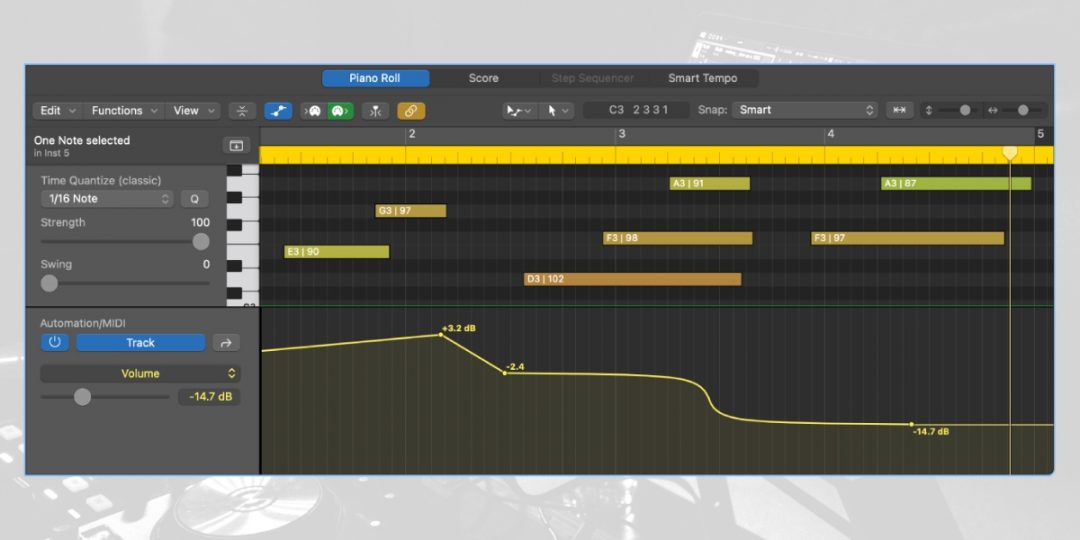
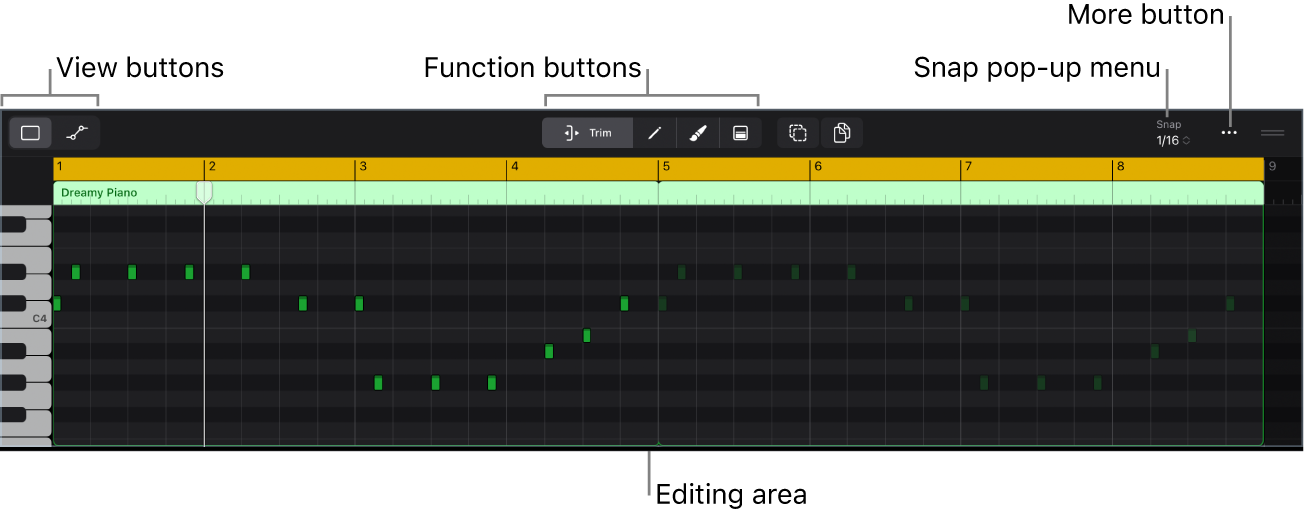
- Zoom and grid: Use zoom shortcuts and grid settings to edit precise timing and note lengths.
- Snap settings: Toggle snap to grid when moving notes to keep parts tight.
- Velocity lanes: Open velocity view to shape dynamics while notes are visible.
- Marquee and tools: Learn marquee select and the pencil tool to draw or edit notes quickly.
- Save a workspace: Save window layouts so the Piano Roll opens exactly where you want it.
I often make a small template with the Piano Roll layout set up for quick songwriting sessions.
Frequently Asked Questions of how to open the piano roll on logic
How do I open the piano roll on Logic using only the keyboard?
Select a MIDI region and press P. If P is not mapped, open Key Commands and assign a shortcut for Piano Roll.
Why won’t the Piano Roll show notes after I open it?
If the Piano Roll is empty, your region may have no MIDI data or the wrong channel. Select the correct region and check that the track contains notes.
Can I open the Piano Roll for multiple tracks at once?
The Piano Roll shows the active region or track. Use the Score Editor or open multiple floating editors if you need simultaneous views for different tracks.
Is there a way to open the Piano Roll automatically when I record MIDI?
Yes. Enable Editor auto-open on record in Preferences or use a template that opens the Piano Roll when tracks are armed.
How do I change the shortcut to open the Piano Roll on Logic?
Open Key Commands, search for Piano Roll, and assign a new key. Save the key command set so you can reuse it on other systems.
What if the P key opens a different editor on my setup?
Key commands can vary by user or presets. Check Key Commands for conflicts and remap Piano Roll to P if you prefer the default behavior.
Conclusion
Opening the piano roll on logic is quick once you know the simple steps: select a MIDI region, press P, or double-click the region. Practice the shortcuts, customize key commands to your taste, and use the troubleshooting tips to avoid workflow stalls. Try the methods in this guide in your next session, save a workspace, and comment below with the trick that helped you most.

Leave a Reply