How To Add Piano Roll To Track Fl Studio: Quick Guide
Open a Channel Rack, right-click a pattern, and choose Piano Roll to add it to a track.
I’ve used FL Studio for years, and I’ll walk you through exactly how to add piano roll to track FL Studio with clear steps, smart tips, and real-life fixes. This guide covers everything from basic setup to advanced editing, and it’s written to help you get musical results fast. Read on to learn a reliable, practical workflow you can use right away.

Why the piano roll matters in FL Studio
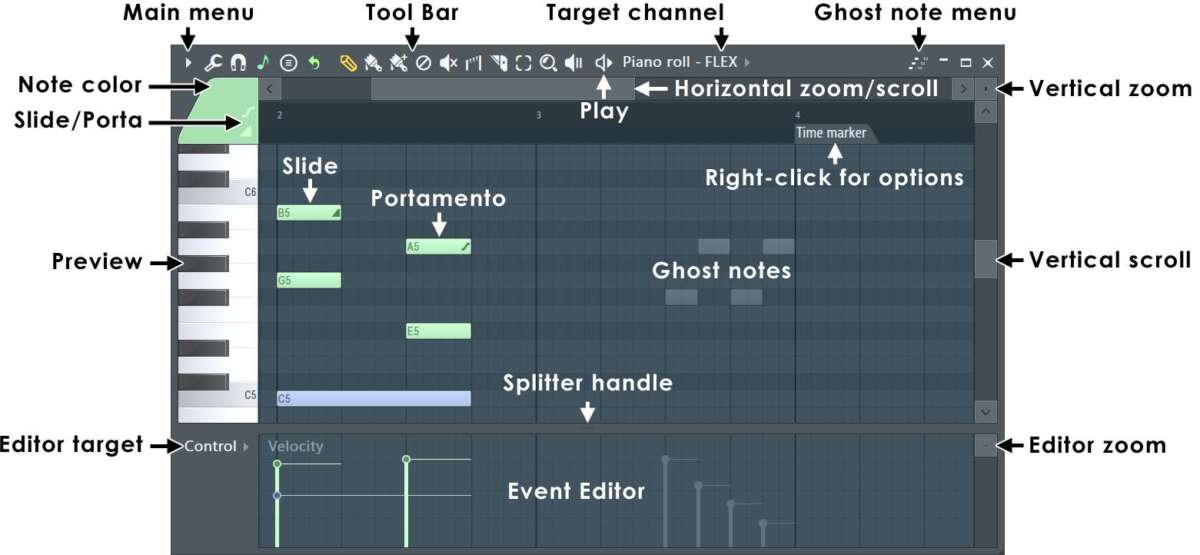
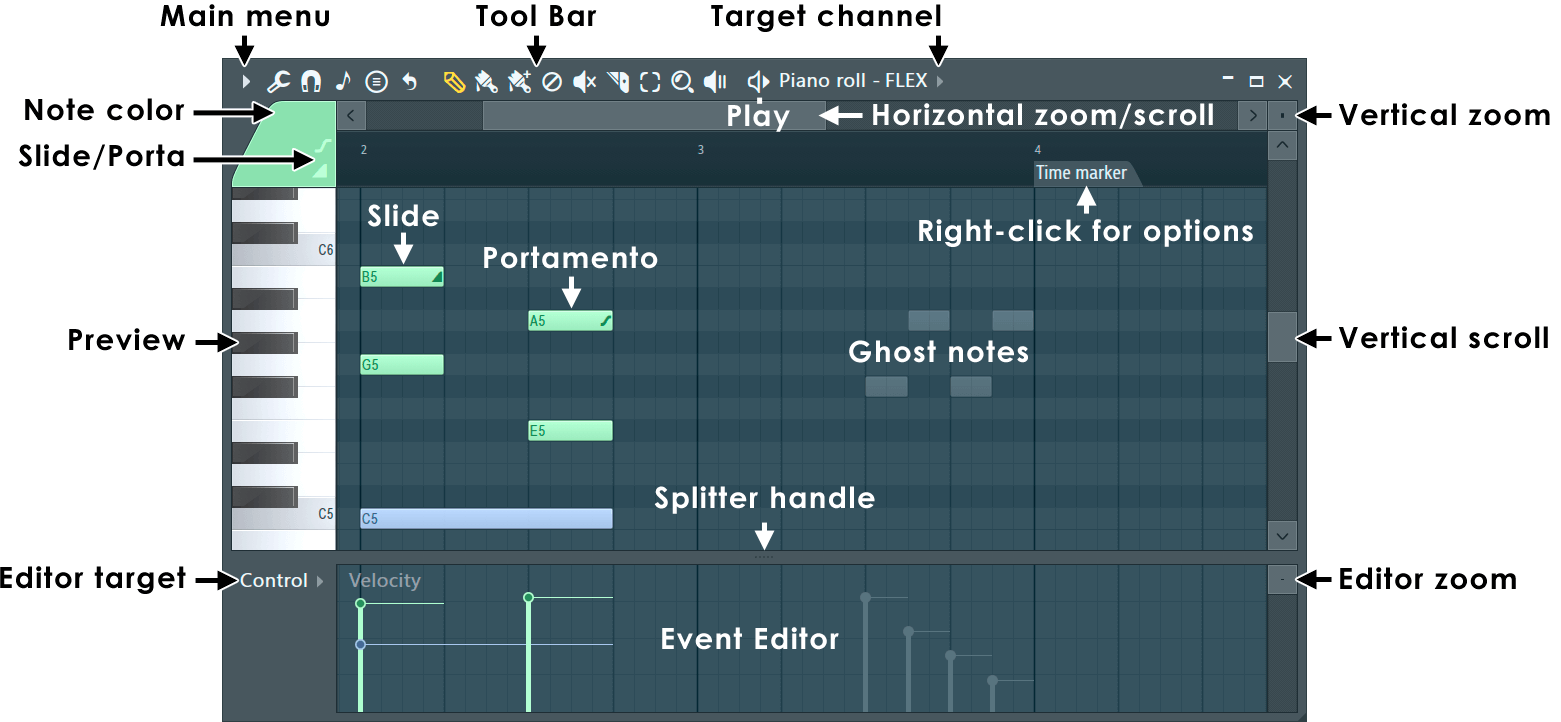
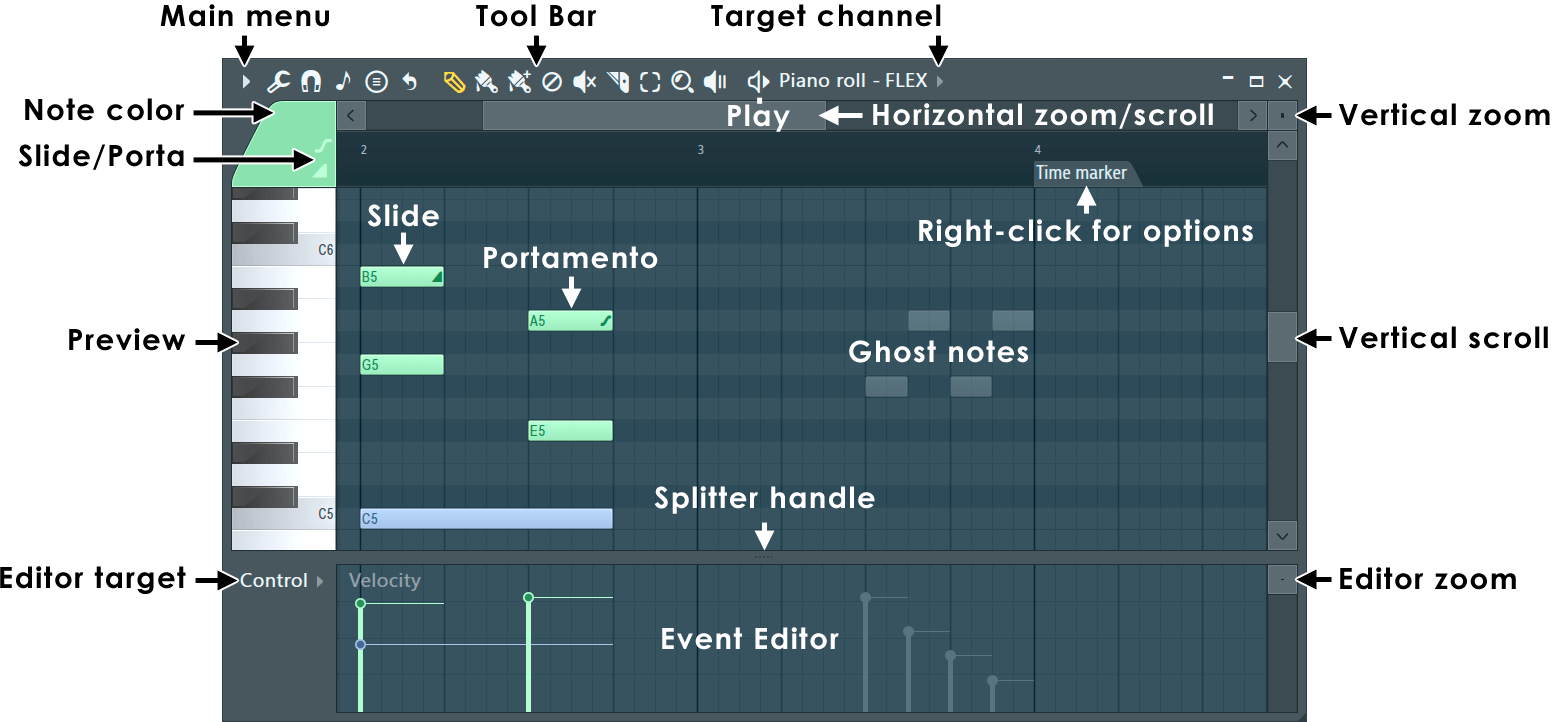
The piano roll is the main place to edit MIDI notes in FL Studio. It gives you precise control over pitch, timing, velocity, and articulation. If you want a melody, chord progression, bassline, or detailed automation, the piano roll is where you build it.
Using the piano roll makes edits visual and fast. You can draw notes, move them, stretch them, and loop patterns. Learning how to add piano roll to track FL Studio changes how you arrange music.
Quick checklist before you start
- Make sure FL Studio is installed and updated.
- Load an instrument or generator (plugin) into a channel.
- Create a pattern in the Channel Rack or Playlist.
- Know whether you want the piano roll on a Pattern track or directly on a Playlist track.
These simple checks prevent confusion when you open the piano roll and see no sound or wrong notes.

Step-by-step: How to add piano roll to track FL Studio
Follow these steps to add the piano roll to a track in FL Studio. Each step is short and clear.
- Open FL Studio and create a new project.
- Load an instrument
- Click the plus icon in the Channel Rack.
- Choose a plugin or preset (for example, FL Keys or a VST).
- Create a new pattern
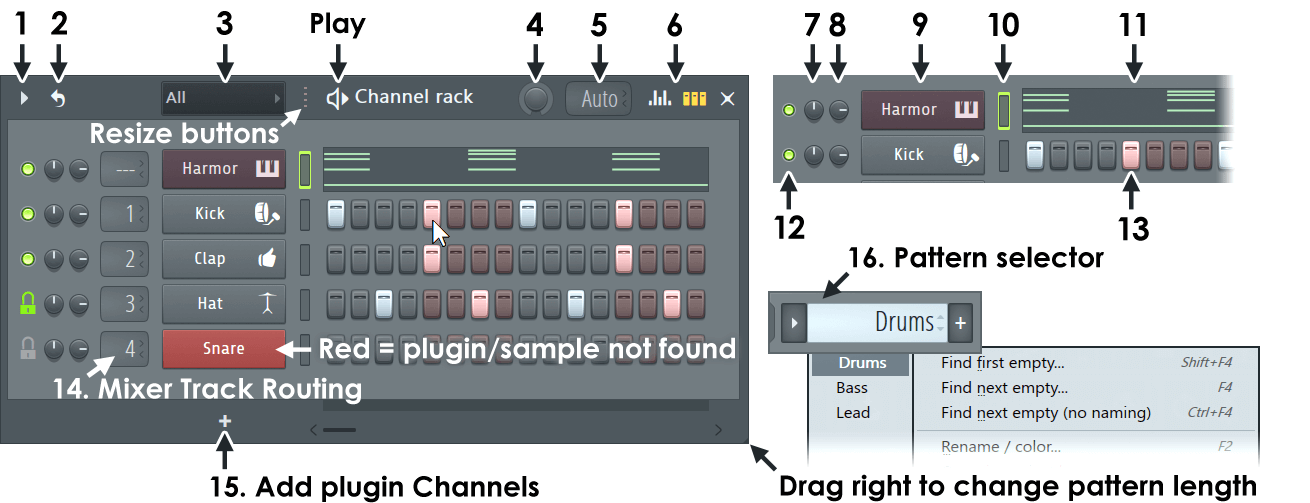
- In the Channel Rack, click the pattern selector and choose New.
- Open the piano roll
- Right-click the instrument channel in the Channel Rack.
- Choose Piano Roll from the menu.
- Place notes on the grid
- Click to draw notes.
- Drag to change length.
- Send pattern to a Playlist track
- Open the Playlist.
- Drag the pattern clip or select the pattern and paint it into a Playlist track.
Now you have the piano roll editing a track. Repeat for each instrument.
Alternative ways to add piano roll to track FL Studio
- From the Channel Rack
- Left-click a channel and press F7 to open the piano roll.
- From the Playlist
- Select a pattern clip, then press F7 to open its piano roll.
- From the Mixer
- Assign the channel to a mixer track, open the channel settings, and use the piano roll icon.
These shortcuts speed up your workflow when building complex arrangements.

Essential piano roll tools and settings to know
- Draw tool
- Use to add or edit notes.
- Paint tool
- Quickly add repeated notes.
- Select and move
- Click-drag to move groups of notes.
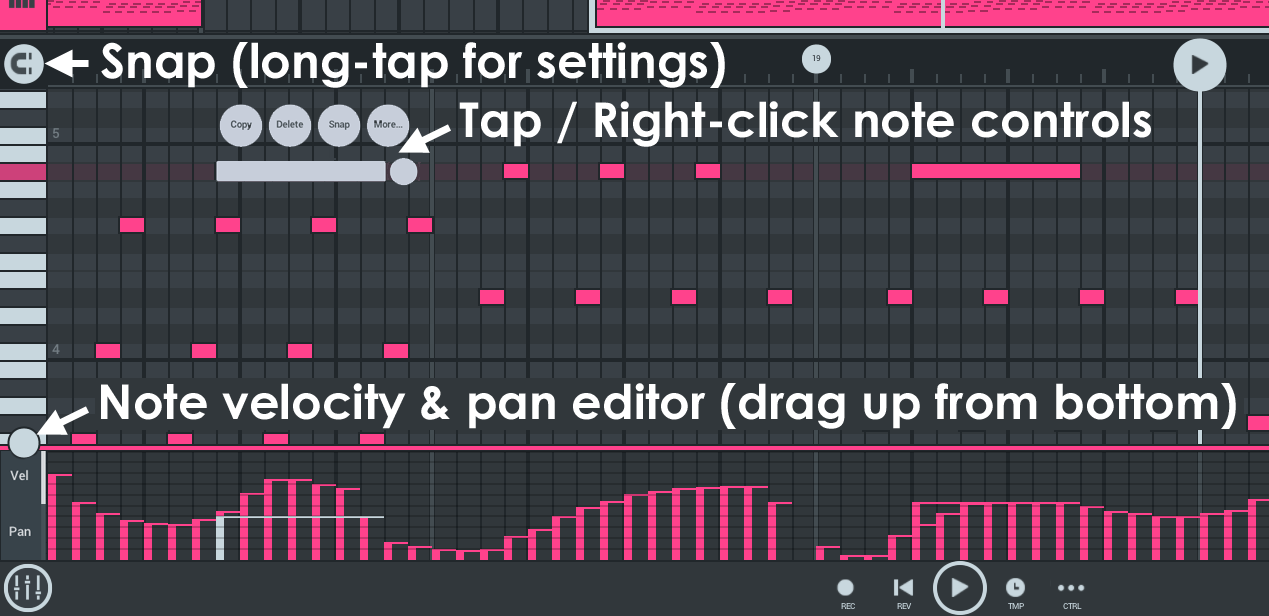
- Snap settings
- Choose grid sizes like Line, 1/2 step, or None.
- Quantize
- Fix timing by snapping notes to the grid.
- Velocity editor
- Change how hard each note plays.
Master these tools and adding the piano roll to a track FL Studio becomes second nature.

Common problems and how to fix them
- No sound from piano roll
- Check the channel is routed to a plugin and the volume is up.
- Notes play on the wrong instrument
- Confirm the piano roll belongs to the correct channel in the Channel Rack.
- Piano roll opens blank
- Make sure you selected a pattern with notes or the right channel.
- Grid snapping prevents fine edits
- Turn off snap or choose a smaller grid size.
These fixes cover the most frequent hiccups I see in sessions.
Advanced tips for better results
- Use multiple patterns
- Make short patterns for loops and longer ones for full sections.
- Link patterns to Playlist tracks
- Name and color patterns to keep the project tidy.
- Use ghost notes
- Show notes from other patterns to help with harmony and arrangement.
- MIDI keyboard input
- Record live to the piano roll and clean up afterward.
- Layer instruments
- Duplicate a pattern to different channels to thicken sound.
These steps help you scale from simple beats to full tracks without losing control.

My experience: mistakes I made and lessons learned
When I started, I frequently opened the wrong pattern and edited silence. I learned to name patterns early. I also relied too much on snap, which killed groove. Now I toggle snap as needed. I recommend saving often and using versioned project files. These small habits save hours later.
A practical tip: use a template with favorite plugins in the Channel Rack. This cuts setup time and keeps you focused on music.
Related concepts worth knowing
- MIDI vs audio
- Piano roll edits MIDI. Plugins turn MIDI into audio.
- Channel Rack vs Playlist
- Channel Rack holds instruments and patterns. Playlist arranges pattern clips and audio.
- Step Sequencer
- Quick beats and percussion; piano roll is better for melodic work.
- Automation Clips
- Use for dynamics and changes over time not drawn in the piano roll.
Understanding these keeps your workflow smooth and logical.
Frequently Asked Questions of how to add piano roll to track fl studio
How do I open the piano roll for a specific track in FL Studio?
Right-click the instrument channel in the Channel Rack and choose Piano Roll, or select the pattern and press F7 to open its piano roll.
Can I add piano roll to an audio track?
No. The piano roll edits MIDI for instrument channels. For audio tracks, edit clips in the Playlist or use pitch tools on audio clips.
How do I move piano roll notes to another track?
Select the notes, copy them, switch to the target channel’s piano roll, and paste. Or drag the pattern clip to another channel and edit as needed.
Why does the piano roll not play when I press keys?
Ensure the channel is routed to a plugin and the plugin is active. Also check MIDI input settings and volume levels.
How do I show other patterns inside the piano roll?
Enable ghost channels from the channel rack or use the piano roll's dropdown menu to show ghosts of other patterns for reference.
Conclusion
Adding the piano roll to a track in FL Studio is a simple but powerful step. You can open the piano roll from the Channel Rack, Playlist, or with a keyboard shortcut, then draw, edit, and arrange MIDI notes with precision. Practice the steps, use the tips here, and build a template that fits your style. Start by adding piano roll to a single track, experiment, and expand from there.
Take action now: open a fresh project, load an instrument, and add your first piano roll pattern. If you found this helpful, share your results, ask a question, or subscribe for more practical FL Studio tips.

Senior Music Reviewer
Alex Carter is a seasoned music reviewer with over a decade of experience in the world of sound and instruments. Passionate about helping musicians and enthusiasts make informed choices, he brings sharp insights and in-depth knowledge to every review. From classical instruments to modern gear, Alex combines technical expertise with a love for music to deliver content that resonates with readers.
As a Senior Music Reviewer and expert author on Tuneluma.com, Alex is dedicated to sharing honest evaluations, practical advice, and thoughtful commentary to guide readers in their musical journey.